Start Page
The start page is the default page displayed after uniTerm launches, providing quick access entries. It also opens automatically when all tabs are closed.
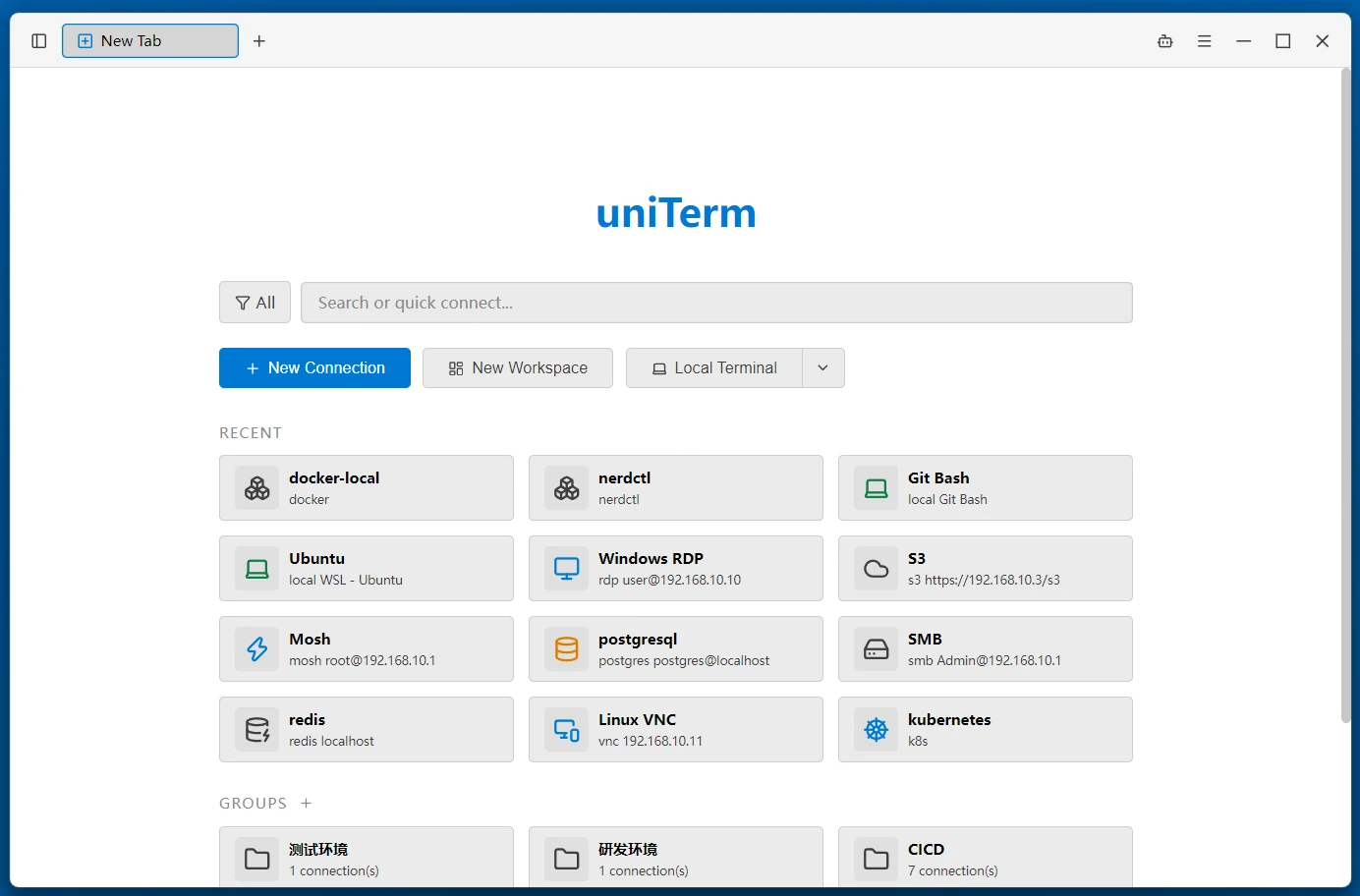
Search and Quick Connect
The search box at the top allows searching saved connections by name, host, and protocol type, with filter buttons for protocol types on the left. It also serves as a quick connect entry — after entering a host address, a "Quick Connect" card appears at the end of the search results. Double-click it to create a new connection to that address. It supports parsing protocol prefix formats like ssh user@host:22.
Favorites
Frequently used connections can be starred and favorited:
- Star / Unstar — Hovering over a connection card or a sidebar connection row reveals a star button; click it to toggle the favorite. The right-click menu also has "Add to Favorites / Remove from Favorites"
- Start page favorites section — Located at the very top of the start page (above "Recent"), showing all favorited connections, with the same interactions as regular connection cards
- Sidebar favorites group — A fixed "Favorites" group appears at the top of the sidebar (only when favorites exist), above all other groups, and can be collapsed
- Drag to reorder — Drag within the sidebar favorites group to reorder favorites (unavailable while searching or filtering)
Connection Cards
Connections are displayed in a card grid. Each card shows the protocol icon, connection name, and summary information (e.g., SSH user@host:22). Hovering over a card reveals a star button and a "⋯" more button in the top-right corner (opening the same menu as right-click).
Mouse Operations:
- Click — Select a card.
Ctrl + Clickfor multi-select,Shift + Clickfor range selection - Double-Click — Open the connection
- Right-Click — Context menu with: Connect, Connect to Workspace (SSH), Files (SSH; transfer protocol SFTP / SCP), Server Monitor, Locate session, Edit, Duplicate, Add to Favorites / Remove from Favorites, Move to, New Group, Delete
- Batch Operations — After multi-selecting, right-click for batch delete or batch move to a group
Keyboard Operations:
Tab— Switch focus between the search box and the card grid↑↓←→— Move focus between cards (can cross between the Favorites, Recent, and Groups sections)Enter— Open the currently focused connection (opens all selected connections when multi-selected)Esc/Backspace— Return to the home page from the group view
Quick Actions
Two action buttons below the search box:
- New Connection — Opens the New Connection dialog
- New Workspace — Creates an empty workspace tab; drag connections from the sidebar to compose splits
- Local Terminal — Dropdown to select an installed shell and start a local terminal: PowerShell / CMD / Git Bash / WSL / bash / zsh, etc. On Windows this also includes Command Prompt (Clink) and UAC-elevated administrator Command Prompt / PowerShell, with automatic detection of Cygwin, MSYS2, and Nushell
Recent
Displays recently opened connection records. Click or double-click to quickly reconnect (the start page shows up to 12 entries).
Connection Groups
Displays all connection groups as cards, showing the group name and connection count. Ungrouped connections are categorized under "(No Group)".
- Enter Group — Click or double-click a group card to enter the group detail view, showing only connections within that group
- Breadcrumb Navigation — The group view shows
Start Page / Group Nameat the top; click Start Page to return - Create Group — Click the
+button next to the groups to create a new one - Right-Click on a Group Card — New Group, New Connection, Rename, Move to, Delete. When deleting, you can choose to keep or remove the connections inside
Related
- Sidebar — Sidebar connection list and file panel
- Cloud Sync — Cross-device sync of favorites and connection configuration