Personalization
uniTerm provides rich personalization options to make the terminal fit your workflow and aesthetic preferences.
Application Settings
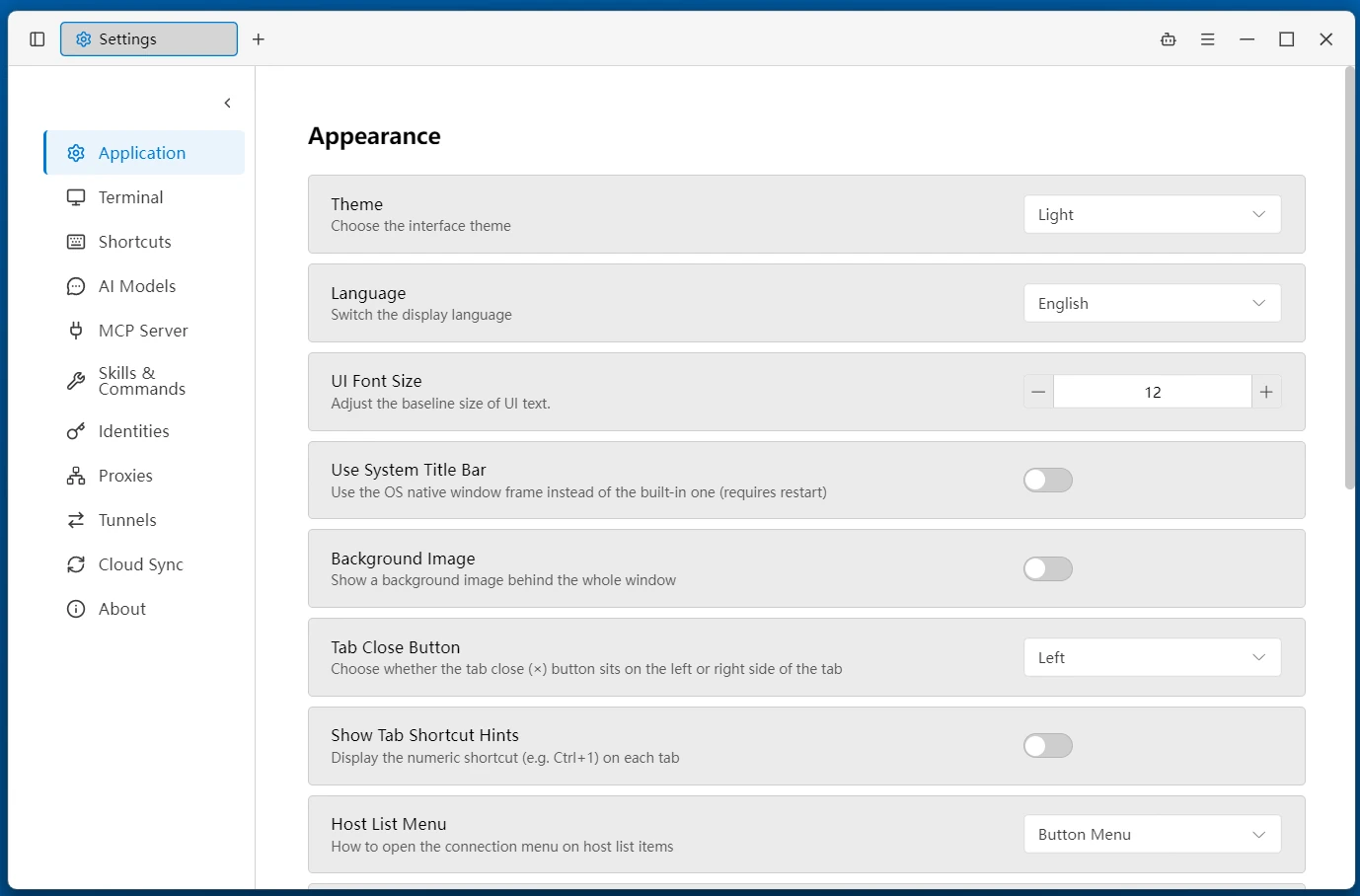
Interface Theme
| Theme | Description |
|---|---|
| Dark | Classic dark theme, easy on the eyes |
| Deep Blue | Deep blue tech feel |
| Light | Bright and refreshing |
| System | Automatically follows the operating system's light/dark mode |
Interface Font Size
The entire interface scales from a unified base size. "Interface Font Size" in the settings adjusts the base text size of the application interface. Changes take effect immediately — no restart needed. The default value depends on the platform: the base is 14px on macOS and 12px on other platforms.
Language
Supports 9 interface languages. Changes take effect immediately without restart:
- 简体中文
- 繁體中文
- English
- 日本語
- 한국어
- Deutsch
- Español
- Français
- Русский
Terminal Settings
Adjust the terminal's appearance and behavior in the "Terminal" settings tab.
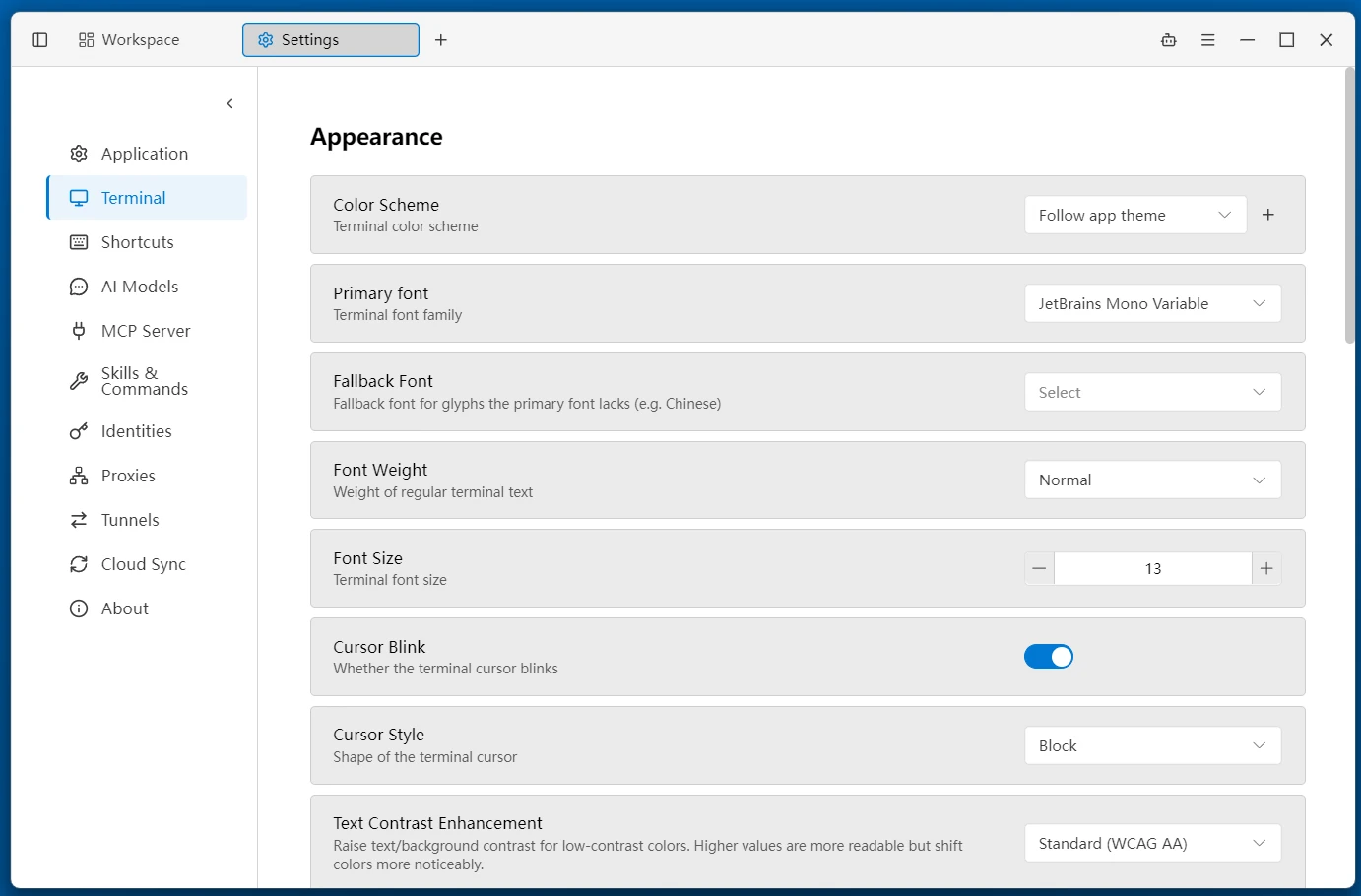
Color Schemes
Multiple popular built-in color schemes, grouped by dark / light. You can also create custom color schemes, and import / export color scheme files in .itermcolors format.
Font
- Font Family — The dropdown automatically fetches installed system fonts (check "Monospace only" to filter), with a real-time preview on selection
- Fallback Font — Used when the primary font is missing characters (such as Chinese)
- Font Weight — Regular / Medium / SemiBold / Bold
- Font Size — Range 8–32, default 14
Cursor Style
- Cursor Style — Block / Underline / Bar
- Cursor Blink — Toggle
Scrollback Lines
Sets the maximum number of output lines the terminal can retain. Range 100–50,000, default 2,500. Early output beyond this limit will be discarded.
Selection Behavior
- No Action — Do nothing when text is selected
- Copy to Clipboard — Automatically copy when text is selected
Right-Click Behavior
- Show Context Menu — Right-click shows the context menu
- Paste Clipboard Content — Right-click pastes directly
Middle-Click Behavior
- No Action — Middle-click does nothing
- Paste Clipboard Content — Middle-click pastes directly (default)
Smart Completion
When enabled, provides real-time completion suggestions based on command history and AI as you type in the terminal.
Text Highlighting
When enabled, automatically highlights content such as timestamps, IP addresses, keywords, and strings in terminal output.
Shortcuts
uniTerm supports customizable keyboard shortcuts.
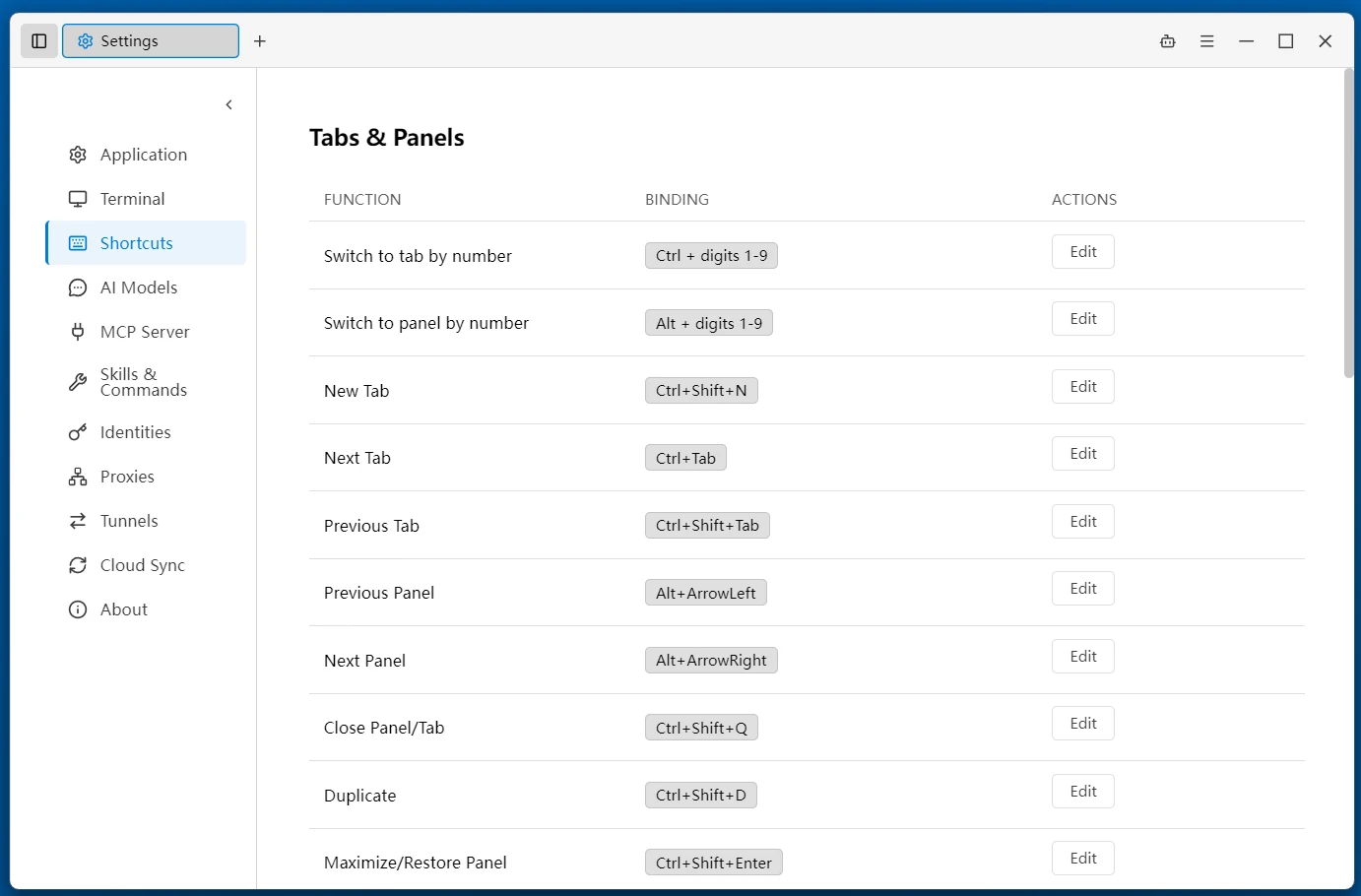
In Settings → Shortcuts, all bindable actions are shown in sections and can be searched or browsed. Click an action and then press the desired key combination to complete the binding. Supports single keys and key combinations (including Ctrl / Alt / Shift / Meta).