SSH Tunnel
uniTerm has a built-in SSH Tunnel Manager that supports three forwarding modes. You can create, manage, and monitor multiple tunnel connections.
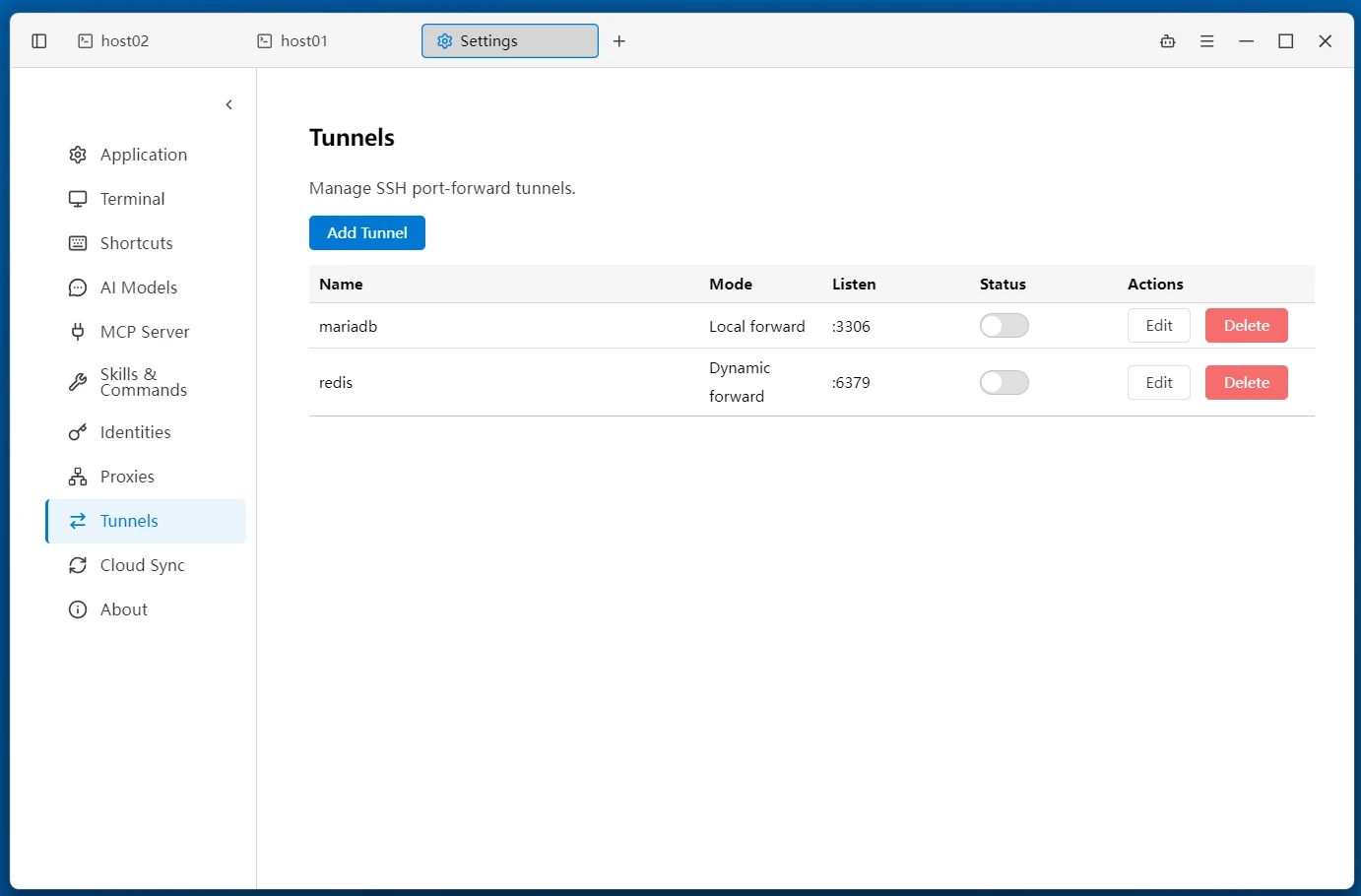
Tunnel Manager
SSH tunnels are managed in a dedicated sidebar tab, as well as in Settings → Tunnels. Click the tunnel icon in the left sidebar to open the tunnel panel and view all created tunnels along with their running status. A search box is provided at the top of the panel.
- Status Indicator — Green means running; yellow means connecting or waiting to reconnect; gray means stopped; red means an error (hover for error details)
- Right-Click Menu — Right-click a tunnel item to start, stop, edit, or delete the tunnel (stop running, connecting, or reconnecting tunnels before editing)
- Drag-and-Drop Groups — Drag tunnel items into groups for organized management
- Credential Prompt — When starting an exit SSH connection for a tunnel without saved credentials, a dialog prompts for them instead of failing outright
- Start Failure Hints — When a tunnel fails to start, the actual reason is reported, along with a configuration test and a sample SSH command
Three Forwarding Modes
Local Forwarding (-L)
Map a remote server's port to your local machine, accessing the remote service through a local port.
Typical Scenario: A remote database (e.g., MySQL :3306) is not publicly accessible. With local forwarding mapping it to localhost:3307, local tools can connect directly.
Local Port :3307 → SSH Tunnel → Remote Database :3306Remote Forwarding (-R)
Expose a local port to a remote server, allowing remote hosts to access your local service through their local port.
Typical Scenario: A locally developed service needs to be accessed by a remote server or external users, such as exposing a local web app to a public server through remote forwarding.
Remote Port :8080 → SSH Tunnel → Local Service :3000Dynamic Forwarding (-D, SOCKS5)
Set up a local SOCKS5 proxy, allowing browsers or other applications to access all services within the remote network through the proxy.
Typical Scenario: Access all internal web systems, APIs, etc. within a corporate network through a jump host, without configuring individual port forwards.
Browser → SOCKS5 :1080 → SSH Tunnel → All Services in Remote NetworkCreating a Tunnel
- Click New Tunnel in the tunnel panel
- Select an SSH Connection as the jump host (requires an SSH connection to be created in the connection list first)
- Choose a Forwarding Mode: Local, Remote, or Dynamic
- Fill in the local address/port and target address/port based on the mode (Dynamic mode only requires a local port)
- Optional: Enable Auto-Start to automatically connect the tunnel on application launch
- Optional: Enable Auto-Reconnect, set the base retry interval (120 seconds by default, configurable from 1 to 86400 seconds), and set random jitter (0–100%, default 0%)
Auto-Start
When auto-start is enabled, the tunnel will automatically connect when uniTerm starts. This is useful for tunnels that need to remain connected at all times, such as a SOCKS5 proxy for a development environment.
Auto-Reconnect
Auto-reconnect is configured per tunnel and works with local, remote, and dynamic forwarding. When enabled, an unexpected SSH disconnect or a failed connection attempt puts the tunnel into Waiting to reconnect. It retries after the configured interval and keeps retrying if an attempt fails. The delay starts when a disconnect is detected or a connection attempt fails.
With jitter set to 0%, the interval is fixed. For example, a base interval of 120 seconds with ±20% jitter gives each retry a fresh random delay between 96 and 144 seconds. Random delays are always at least 1 second.
Clicking Stop, deleting the tunnel, or quitting uniTerm cancels automatic retries. Click Start to resume. Auto-reconnect and auto-start can be enabled independently; testing a configuration never starts background retries.
Automatic connections require available SSH credentials. Temporary credentials entered for a manual start are reused only during that tunnel's current lifecycle and are not saved to disk by auto-reconnect. Connecting after an application restart still requires saved credentials.
Related
- Remote Terminal — SSH connection configuration
- Workspace — Sidebar tab management
- Server Monitor — Real-time server monitoring via SSH