Smart Suggestions
When typing in the terminal, uniTerm provides real-time completion suggestions to help you enter commands faster.
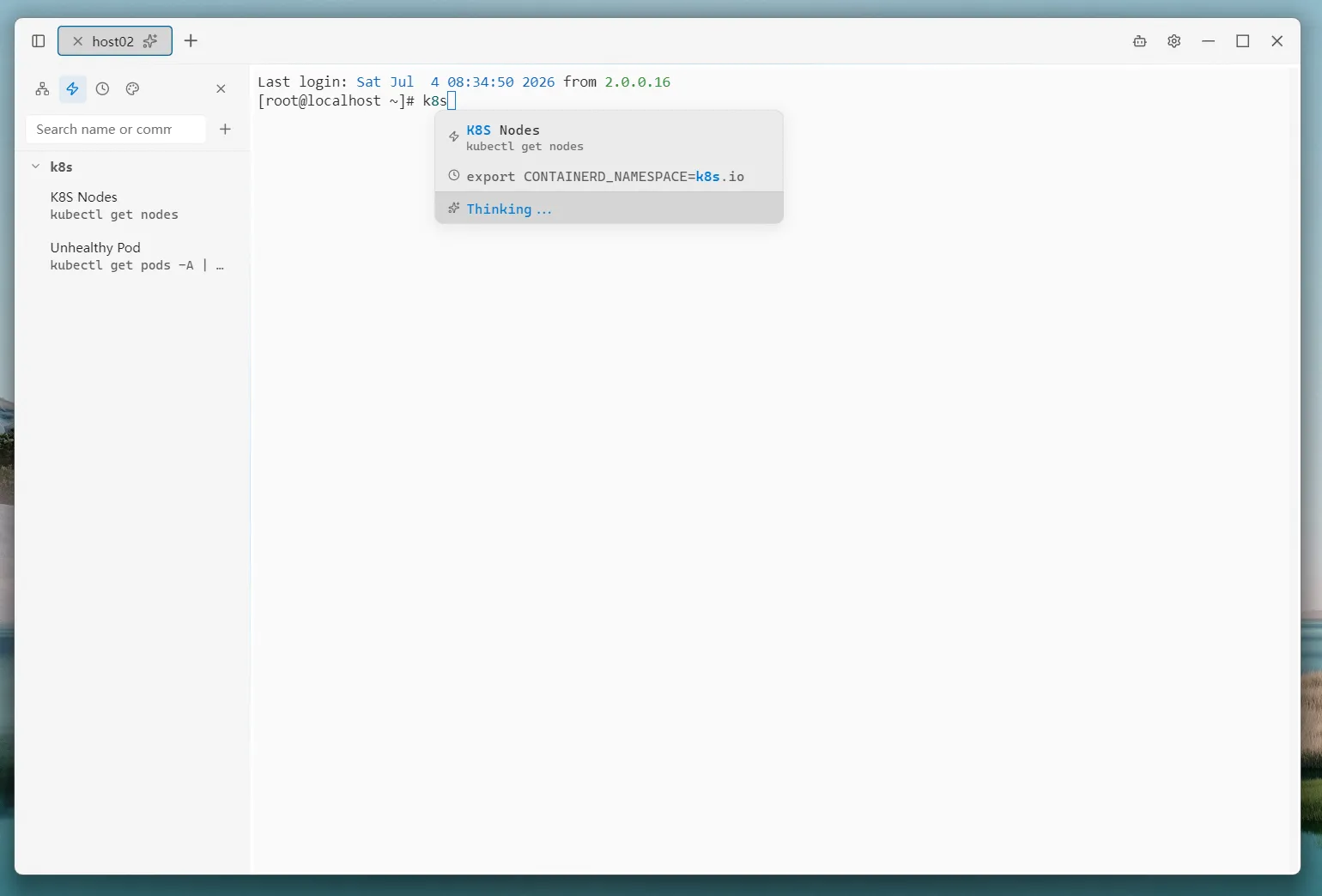
Smart Completion
When typing commands in the terminal, completion suggestions automatically appear below the input field. Press ↑ ↓ to navigate, Enter to accept, Esc to dismiss. Completion sources include:
- History Matching — Matches from command history using prefix and fuzzy matching, with matched characters highlighted
- Quick Commands — Matches saved quick command names and command content
- AI Suggestions — AI generates command suggestions based on the current input context; the result is auto-selected when it arrives
Smart completion can be globally enabled or disabled in Settings.
Quick Commands
Save frequently used commands as quick commands for easy access from the left panel.
Managing Quick Commands
- New Command — Enter a command name (optional) and command content, then select a group
- New Group — Create a group for organizing quick commands
- Drag to Sort — Commands can be dragged between groups to rearrange
- Right-Click Menu — Edit commands, delete commands, or rename/delete groups
Execution Methods
Each quick command supports three actions:
- Run — Send the command + Enter, executing it directly
- Paste — Paste only the command text into the terminal without auto-executing
- Copy — Copy the command to the clipboard
Terminal History
uniTerm automatically records commands entered in the terminal, deduplicates them, and saves them locally.
- History Panel — Press
Ctrl + Shift + Hto open. Supports search and multi-select - Run / Paste / Copy — The same three execution methods as quick commands
- Save as Quick Command — Select a history entry and convert it to a quick command with one click
- Delete — Remove unwanted history entries