File Transfer
uniTerm has a built-in dual-pane file browser that supports multiple file transfer protocols, providing a unified file management interface. Files on SSH connections can also be managed through the Files sidebar.
Supported Protocols
SFTP
A secure file transfer protocol based on SSH, and the default file transfer method for SSH connections.
| Parameter | Description |
|---|---|
| Host | Server IP or domain name |
| Port | Default 22 |
| Username | Login username |
| Auth Type | Same as SSH: Identity (keystore) / Password / Key Path / Key Text / Kerberos / SSH Agent |
| SSH Tunnel | Optional, connect to intranet hosts via a jump host |
| Proxy | Optional, connect through a specified proxy or the system proxy |
SSH connections can also select SFTP as the "File Transfer Protocol" in the connection settings, without creating a separate connection.
SCP
A file copy protocol based on SSH, compatible with hosts without an SFTP subsystem (embedded devices, minimal systems, etc.). Its recursive transfer capabilities are the same as SFTP.
| Parameter | Description |
|---|---|
| Host | Server IP or domain name |
| Port | Default 22 |
| Username | Login username |
| Auth Type | Same as SSH: Identity (keystore) / Password / Key Path / Key Text / Kerberos / SSH Agent |
| SSH Tunnel | Optional, connect to intranet hosts via a jump host |
| Proxy | Optional, connect through a specified proxy or the system proxy |
| Max Concurrent File Transfers | Maximum number of simultaneous file transfers, 0 for unlimited |
SSH connections can also select SCP as the "File Transfer Protocol" in the connection settings, without creating a separate connection.
FTP / FTPS
Traditional FTP protocol and encrypted FTPS.
| Parameter | Description |
|---|---|
| Host | FTP server address |
| Port | Default 21 |
| Username / Password | Login credentials |
| Encryption | Optional FTPS (explicit/implicit TLS) |
SMB
Windows file sharing protocol (Samba), used for connecting to LAN shared folders or NAS.
| Parameter | Description |
|---|---|
| Host | SMB server address |
| Port | Default 445 |
| Share Path | Shared directory path |
| Username / Password | Login credentials |
| Domain | Optional, for Windows domain environments |
WebDAV
An HTTP-based file management protocol, commonly used for NextCloud, ownCloud, and other cloud storage services.
| Parameter | Description |
|---|---|
| URL | WebDAV service address |
| Username / Password | Login credentials |
S3
Amazon S3 API-compatible object storage. Also supports MinIO, Alibaba Cloud OSS, and other compatible services.
| Parameter | Description |
|---|---|
| Endpoint | Service endpoint address |
| Access Key | Access key ID |
| Secret Key | Secret access key |
| Bucket | Bucket name (optional; leave empty to list all buckets) |
| Region | Region |
| URL Style | Virtual-hosted (default) for Alibaba Cloud OSS / Tencent COS / Huawei OBS; Path for AWS S3 / MinIO |
File Browser
Once connected, all protocols share the same file browser interface -- a dual-pane layout with the local filesystem on the left and the remote target on the right.
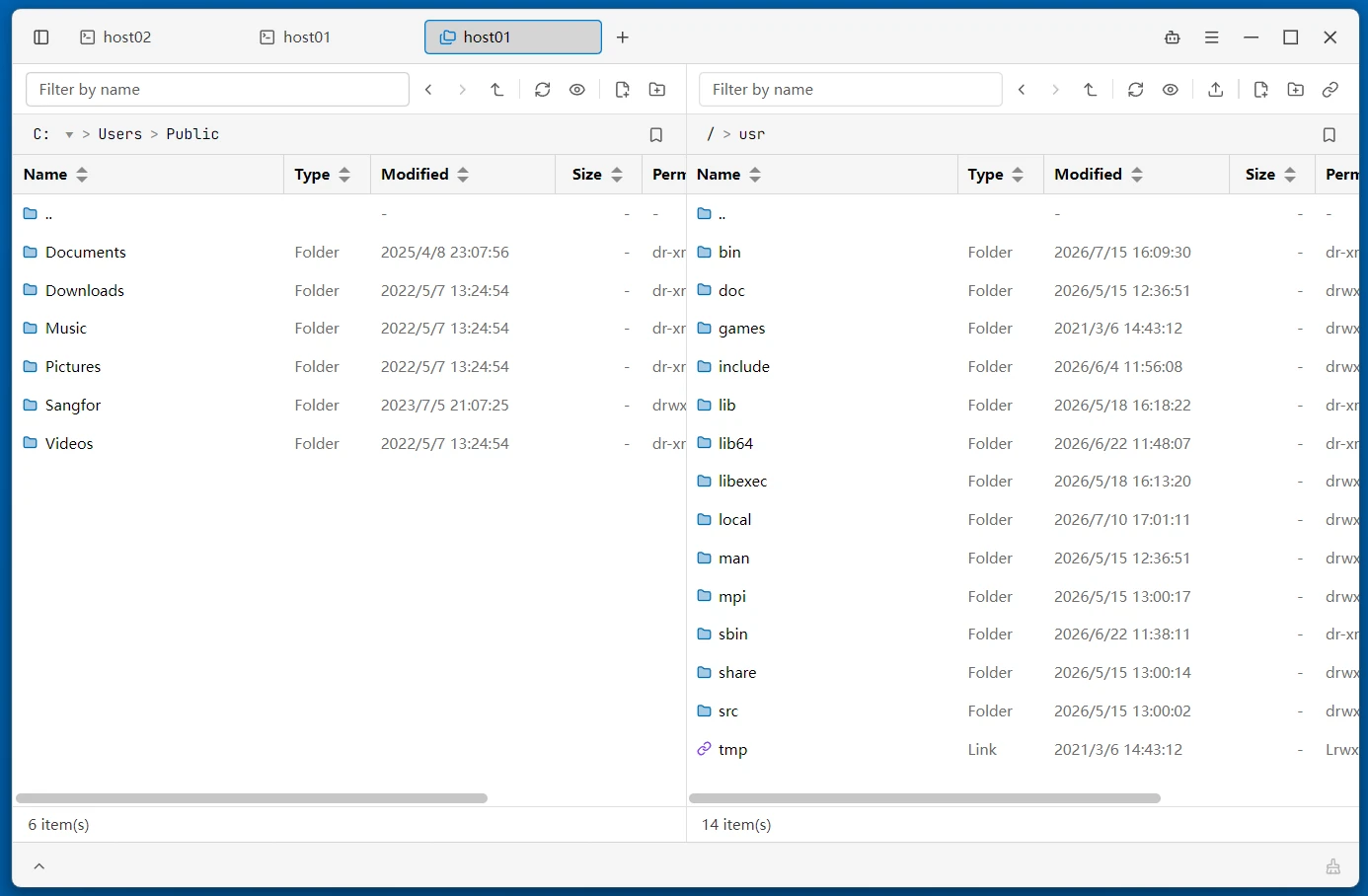
Dual-Pane Layout
The left pane shows the local filesystem and the right pane shows the remote target. The divider between them can be dragged to adjust the ratio. Each side has its own path bar and toolbar, and the toolbar provides Back / Forward / Go Up navigation buttons plus a "More" menu (show hidden files, new file, new directory, etc.).
File Operations
- Upload -- Drag files from the desktop/file explorer into the window, or click the upload button in the toolbar; drags are transferred via native paths, with no size limit
- Download -- Drag selected remote files to the local side or to the desktop/file explorer, or right-click "Download to..." to choose a local directory (on conflict, you can choose to overwrite or rename)
- Multi-select -- Hold
Ctrlto select items individually,Shiftfor range selection; dragging on empty space draws a rubber-band selection (Ctrl+ drag appends to the selection);Ctrl/Cmd + Aselects all - New Folder / New File -- Create at the current location
- Delete / Rename -- Operate on selected items; batch deletion is supported
- Copy / Cut / Paste -- Copy or move files within the same side or across sides; when pasting, each file is compared against the target directory, and name conflicts can be resolved with "Overwrite All" or "Auto Rename";
Ctrl/Cmd + X / C / Vshortcuts are supported
Context Menu
Right-click in the file list to open a context menu with common operations:
- New File / New Directory / New Link -- New Link creates symbolic links; directory links can be entered and resolve to the real target
- Edit -- Open a remote text file in the built-in editor
- Open in External Editor -- Edit a remote file with your local editor; changes are automatically uploaded on save
- Open With... -- Invoke the system "Open With" picker to choose an application; saved changes are automatically pushed back to the remote
- Copy / Cut / Paste -- Clipboard operations
- Copy File Path / Copy Path to Terminal -- Copy the path, or enter it directly into the terminal the file belongs to
- Change Permission -- Change file permissions (chmod)
- Rename / Delete -- Standard operations
Path Navigation
- Path Bar -- Displays the full path of the current directory. Click any segment to jump to it, or type a path directly and press Enter to navigate
- Back / Forward / Go Up -- Full directory history navigation
- Bookmarks -- Click the star next to the path bar to bookmark the current directory, then jump to it with one click from the "Bookmarks" dropdown
File List
- List View -- A table with columns such as Name, Type, Modified, Size, Permission, Owner, and Group
- Entry Colors -- Folder icons render as Finder-style light-blue filled glyphs and symlinks violet, so kinds are told apart at a glance; name text stays neutral
- Column Visibility -- Right-click a column header for a check menu that hides Type / Modified / Size / Permission / Owner / Group (Name always stays); shared across both panes and remembered across restarts
- Sorting -- Click column headers to sort by name, size, modification time, etc. in ascending or descending order
- Filter by Name -- Type a keyword to instantly filter the current directory
- Type-ahead -- When the list has focus, pressing a letter key jumps to the first matching item; pressing the same key again cycles among matches
- Hidden Files -- Toggle whether to show hidden files starting with
. - Progressive Loading -- Large directories are rendered in batches, staying smooth with tens of thousands of entries
Text Editor
Double-click a text file to open it in the built-in editor:
- Find / Replace -- Match count, with toggles for regex, case sensitivity, and whole-word matching, plus
$Ngroup replacement - Undo / Redo, font size adjustment, word wrap toggle
- Character Encoding -- A submenu distinguishes "Reopen with Encoding" (re-decodes the file; asks for confirmation first if there are unsaved changes) from "Save with Encoding" (only affects the encoding used when saving). Files containing Chinese and other characters no longer fail to save
- Line ending switching (LF/CRLF) and saving back to the remote
Transfer Management
The bottom panel shows all transfer tasks in one place:
- Each task shows direction, progress, speed, remaining time, and status (transferring / completed / failed / cancelled)
- Retry failed tasks -- Failed tasks can be retried, automatically skipping files that already completed; directory transfers can be expanded to see per-file details
- Pause / Resume / Cancel -- Transfers can be controlled at any time while in progress
- Disconnected marking -- When a connection drops, in-progress tasks are automatically marked as failed and can be retried with one click
- The panel expands automatically when a new task appears and can be collapsed; "Clear completed" removes finished tasks in one click
- Continues across terminals -- Transfers keep running after you switch to another terminal; tabs with active transfers show a transfer indicator icon
SFTP / SCP sessions use SSH keepalive, so idle transfer connections are no longer dropped by servers or firewalls due to inactivity.
Related
- Remote Terminal -- SSH connections (SFTP / SCP are based on SSH)
- Sidebar -- Files sidebar and "Follow terminal path"