Workspace
uniTerm manages multiple connections through tabs and displays multiple terminals side by side through workspaces.
Tabs
Tab Operations
- New Tab — Double-click a connection in the left connection list, or right-click a connection and select a connection method
- Switch Tabs — Click the tabs at the top to switch; press
Ctrl+1–9to switch tabs by number (⌘+1–9on macOS), viewable in Settings → Shortcuts - Duplicate Session — Press
Ctrl+Shift+Dto duplicate the current session within the current workspace - Connect to Workspace — Right-click an SSH connection in the sidebar and choose "Connect to Workspace" to open the new session directly into an existing workspace
- Close Tab — Click the × button on the right side of a tab, or right-click to close
Tab Dragging
- Reorder — Drag tabs to rearrange their order
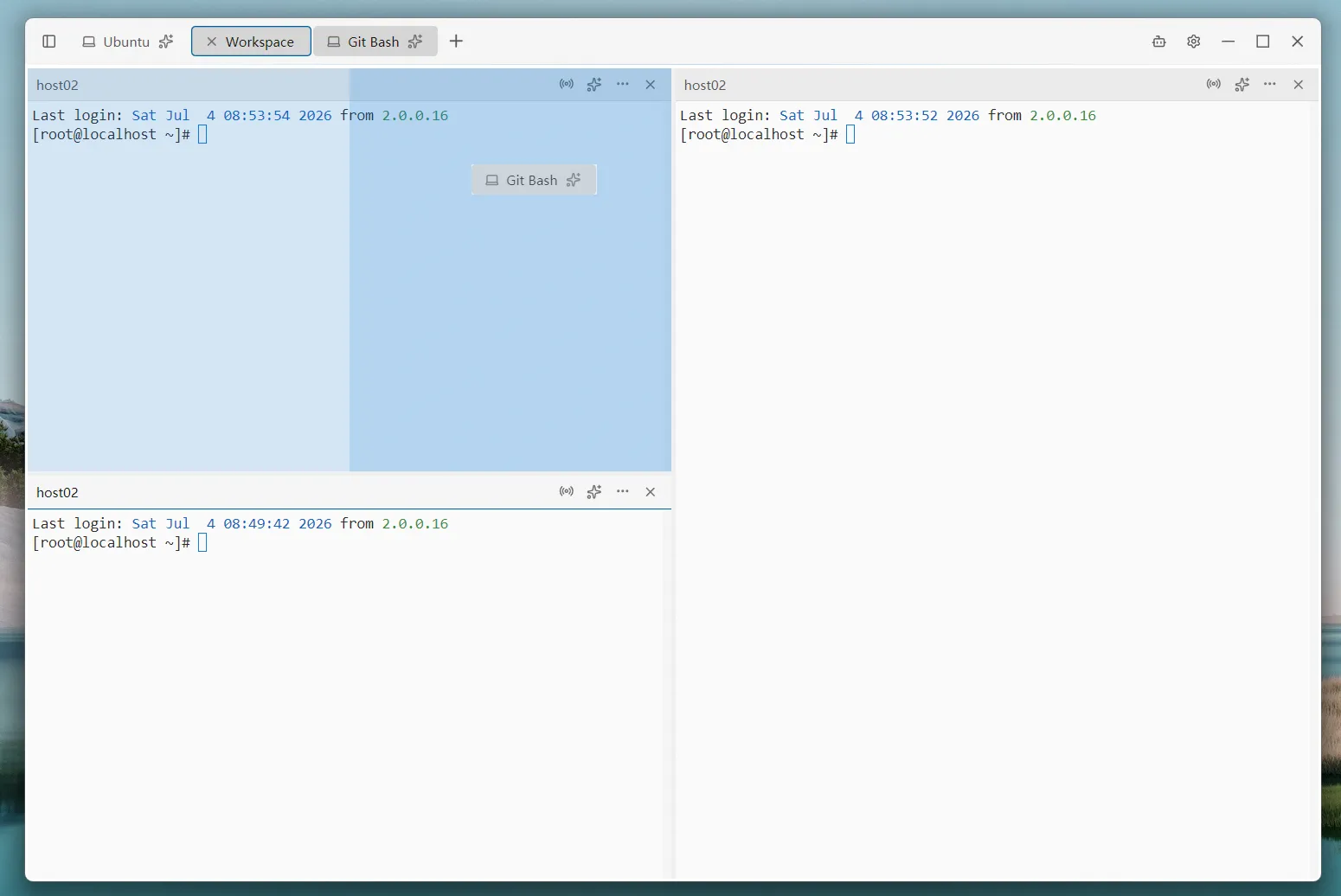
- Drag into Split — Drag a terminal-type tab into the content area to create a split (other tab types do not support merging into the workspace)
- Drag out of Split — Drag a tab from a split back to the tab bar to cancel the split
Tab Right-Click Menu
Right-click a tab to open a context menu. Different tab types show different items:
Common menu (all tabs):
- Rename — Change the tab display name
- Locate connection — Locate the current connection in the sidebar connection list
- Lock Tab — Lock the AI's operations on this terminal
- Close / Close Other Tabs / Close Tabs to the Right / Close Tabs to the Left
Terminal menu (SSH / Local):
- Duplicate Session — Duplicate the current session within the current workspace
- Reconnect — Reconnect the current session after a disconnect
- Copy Host Address — Copy the target host address
- Broadcast to this tab — Add the current tab to the input broadcast targets
- Text Search — Search for keywords in terminal output
- Export Text — Export terminal output as a text file
- Start / Stop Logging — Start or stop session logging at any time
SSH-specific menu:
- Open SFTP / Open SCP — Open the file panel on the current connection
- Upload File (rz -be) — Send the
rz -becommand to the terminal - Server Monitor — Open the monitoring panel on the current connection
Workspace
Creating a Workspace
- Drag Tabs — Drag a tab into the content area. Drag to the top/bottom edge to create a horizontal split; drag to the left/right edge to create a vertical split
- New Workspace — Select one or more connections in the sidebar connection list, right-click and choose "New Workspace"; the selected connections form a workspace. The start page also offers a "New Workspace" entry
- Drop Connections — Drag a connection from the sidebar into the workspace content area to add it as a new split
- Resize — Drag the divider between splits to adjust panel proportions
- Close Split — Drag the tab back to the tab bar to cancel the split
Save & Open
Workspaces can be saved by name and restored with one click later:
- Save Workspace — Right-click a workspace tab and choose "Save Workspace", then enter a name. Saving with the same name overwrites in place; a new name saves as a new workspace
- What Is Saved — The member connections and the split layout; members store only connection references — no credentials are persisted, they re-resolve at open time
- Open Workspace — Saved workspaces appear in the connection list; double-click to restore, which reconnects the members following the saved layout. Members that fail to open (host deleted or connection failed) are reported by count while the rest open normally
Dissolving a Workspace
Right-click a workspace tab and choose "Dissolve Workspace": all terminals in the workspace return to the tab bar as independent tabs (sessions stay connected), and the workspace's broadcast is turned off automatically.
Panel Menu
Each terminal panel provides action buttons on its title bar; right-clicking the title bar also opens the same menu as the tab:
- Duplicate Session — Duplicate the current session as a new panel in the workspace
- Maximize panel — Maximize the panel to fill the workspace; click again to restore. Default shortcut is
Ctrl+Shift+Enter, rebindable in Settings → Shortcuts - Broadcast — When enabled, the current panel joins the input broadcast targets
- AI Lock — Pin the AI Assistant to this panel. When locked, the whole tab and the panel title bar show a warning-colored background
- More — Dropdown menu (similar to the tab right-click menu): Duplicate Session, Reconnect, Text Search, Export Text, Open SFTP / SCP, Upload File, Server Monitor, and more
- Close — Close the current panel
Broadcast Input
When broadcast input is enabled, content typed in any broadcast target terminal is sent simultaneously to all broadcast targets. Targets are not limited to the current workspace — right-click any terminal tab or workspace panel to join or leave the broadcast, freely combining tabs across tabs and workspaces. This is useful for executing the same command on multiple servers at once.
Related
- Remote Terminal — SSH tab right-click menu
- Personalization — Adjust the interface theme