Sidebar
The sidebar sits on the left side of the main interface and brings together companion panels such as file management, server monitoring, tunnels, and quick commands, so they can be used alongside the terminal tabs.
Sidebar Tabs
The top of the sidebar is a tab bar containing the following tabs:
- Connection List — The main view, showing saved connections and groups (always visible, cannot be hidden)
- Files — The file management panel for the current terminal connection. See File Sidebar below
- Monitor — Real-time resource monitoring of the host of the current connection. See Monitor Sidebar
- Tunnels — The SSH tunnel manager. See SSH Tunnel
- Quick Commands — Save frequently used command snippets and send them to the current terminal with a click. See Quick Commands and History
- History — View and reuse commands entered in the terminal. See Quick Commands and History
- Personalization — A quick settings panel for theme, language, font, and font size
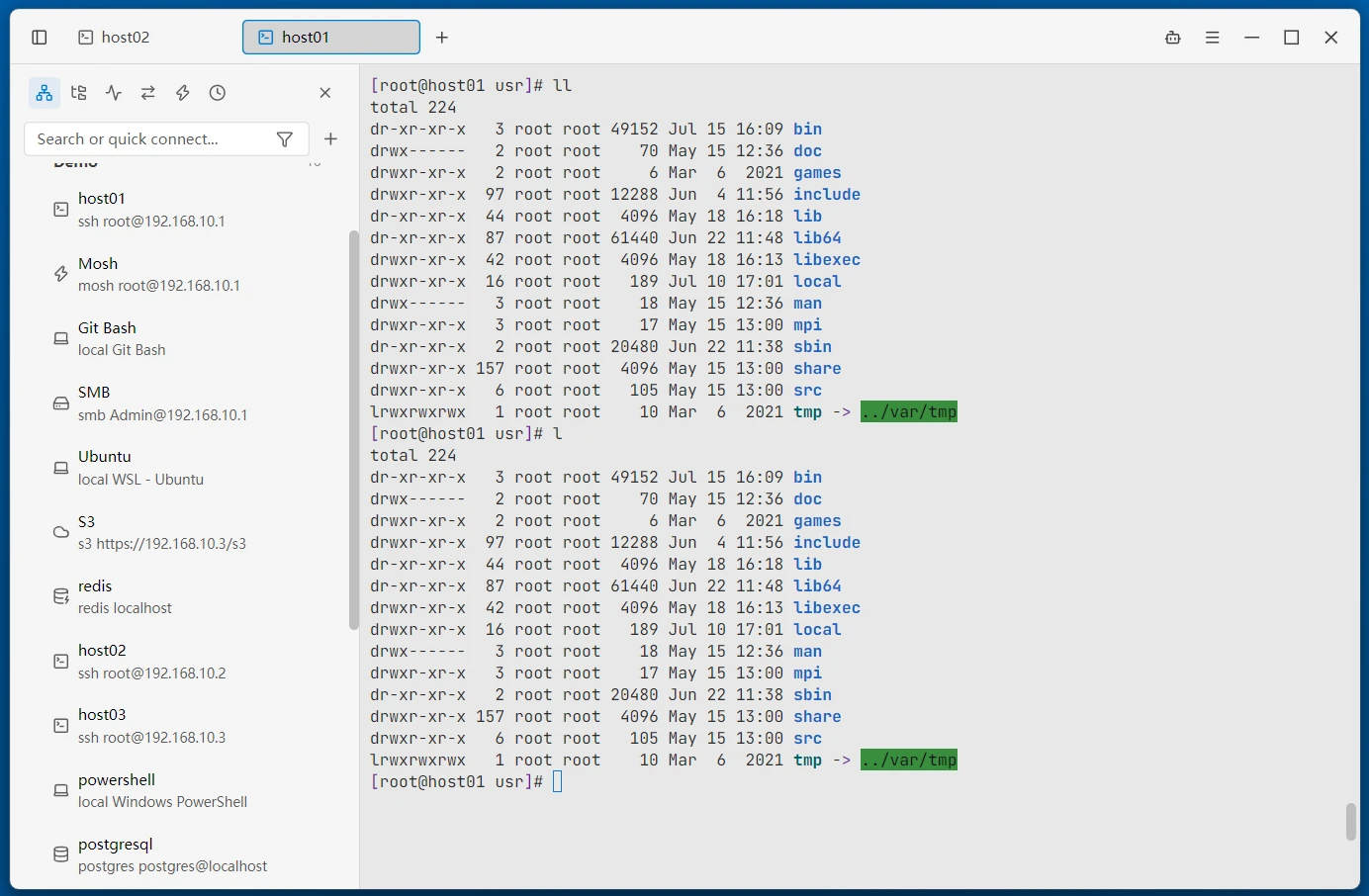
The Collapse button at the far right of the tab bar folds the entire sidebar away to free up space for the terminal.
Customizing Visible Tabs
Tabs you rarely use can be hidden:
- Right-click the tab bar at the top of the sidebar — Check or uncheck items in the popup menu
- Settings → Sidebar Tabs — Choose which tabs to display in the same way
When you hide the tab currently being displayed, the sidebar automatically falls back to the Connection List view. The sidebar width can be adjusted by dragging its edge.
File Sidebar
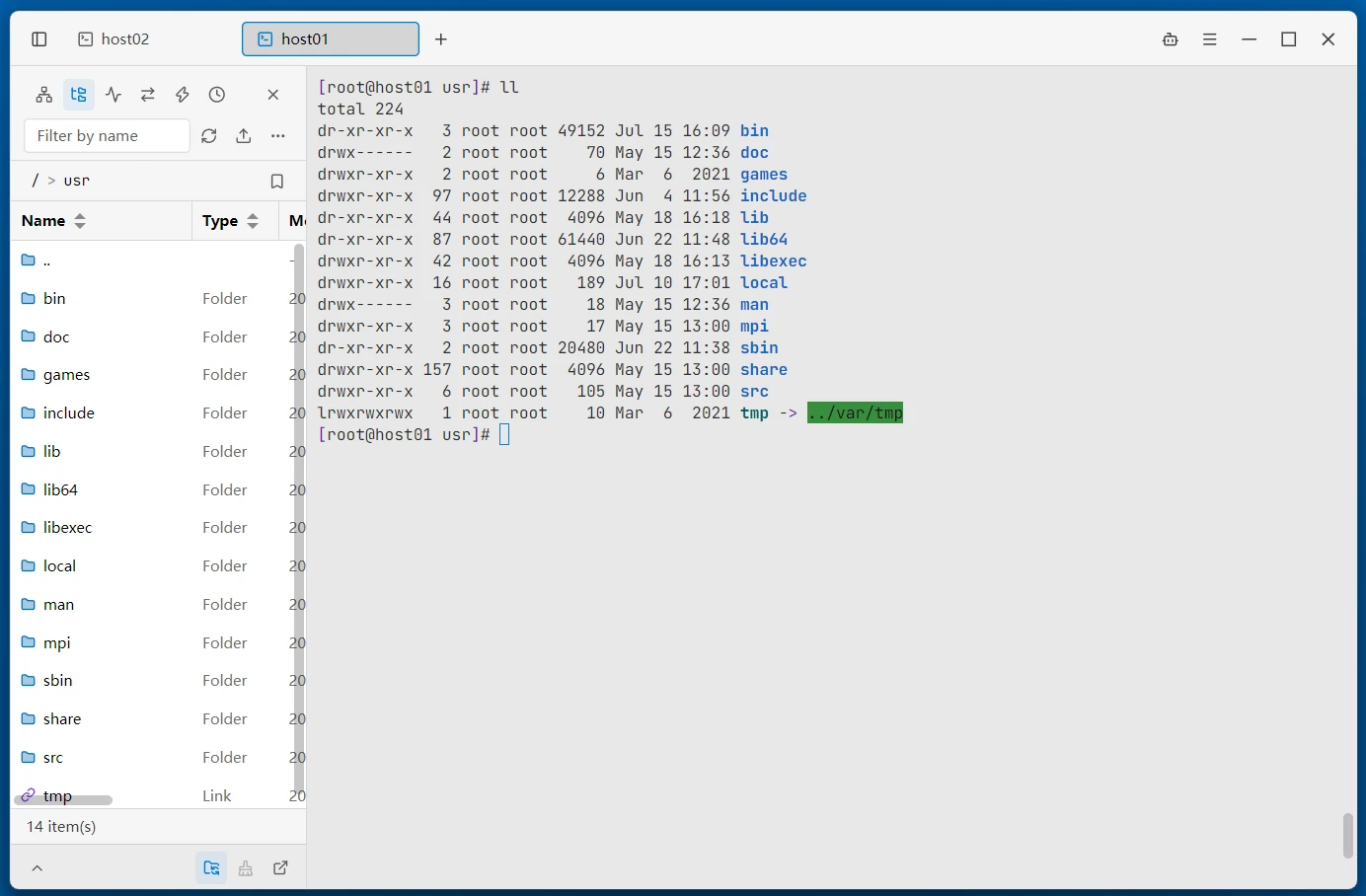
The File Sidebar is a file management panel that follows the current connection. It supports two kinds of sessions:
- SSH connections — Browse remote files via SFTP or SCP (depending on the file transfer protocol configured for the connection)
- WSL terminals — Browse and manage WSL distribution files through the
\\wsl.localhost\<distribution>share;/mnt/<drive>/...paths map directly to local Windows drive letters, with no SFTP subsystem needed
When no session is available, "No SSH session available" is shown. The Open SFTP Tab button at the bottom of the sidebar opens the file panel as an independent tab.
Directory Browsing and Navigation
- Path breadcrumbs — Click to jump between levels, or type a path and press Enter to jump directly
- Back / Forward / Go up — Full directory history navigation (in the "More" menu)
- Filter by name — Type a keyword to instantly filter the current directory
- Sorting — Click column headers such as Name / Modified / Size to sort
- Progressive loading — Large directories are rendered in batches; tens of thousands of entries stay smooth
- Type-ahead navigation — With the list focused, press a letter key to jump to the first match; press the same key repeatedly to cycle through matches
- Entry colors — Folder icons render as Finder-style light-blue filled glyphs and symlinks violet, so kinds are told apart at a glance; name text stays neutral
- Column visibility — Right-click a column header for a check menu that hides Type / Modified / Size / Permission / Owner / Group (Name always stays); shared across panels and remembered across restarts
- Show hidden files — Toggle dot-prefixed hidden files from the toolbar
- Refresh and cancel — Loading a large directory can be cancelled at any time
Path Bookmarks
Click the star to the right of the breadcrumbs to bookmark the current directory. From then on, jump back to it in one click from the "Bookmarks" dropdown — ideal for quick access to deeply nested directories.
Selection and Bulk Operations
- Rubber-band selection — Hold and drag on empty space to draw a selection box; a plain drag replaces the selection,
Ctrl + dragadds to it (same as File Explorer) - Multi-select and range select —
Ctrl + clickfor multi-select,Shift + clickfor range selection - Select All —
Ctrl/Cmd + A - Clipboard shortcuts —
Ctrl/Cmd + X / C / V - Selection stats bar — The status bar at the bottom always shows the number of items; when there is a selection it shows the selected count and total size
Creating and Editing
- New File / New Directory / New Link — In the "More" menu or the right-click menu
- Edit — Open remote text files in the built-in editor
- Open in External Editor — Edit remote files with an editor on your machine; changes are uploaded back automatically on save
- Open With… — Use the system "Open with" picker to choose an application; the file is pushed back to the remote path after saving
Clipboard and Conflict Handling
Copy / Cut / Paste are supported:
- On paste, each item is compared against the target directory. When a file name conflicts, a dialog lets you choose Overwrite All or Auto Rename
- Cutting into the same directory, or pasting a directory into itself, reports an error directly
- While a paste is in progress, the toolbar shows the number of pending items, and it can be cancelled midway
Right-Click Menu
- Copy file path — Copy the remote path to the clipboard
- Copy path to terminal — Type the path directly into the prompt of the owning terminal (without a newline)
- Download to... — Choose a local directory to download into; on conflict you can choose to overwrite or rename
- Rename / Delete / Change Permission — With multi-select, these apply only to items that support bulk operations; deletion asks for confirmation
Upload and Download
- Drag-and-drop upload — Drag files from the system onto the file sidebar to start uploading. Files are transferred from their native paths with no size limit
- Upload — Use the toolbar button to pick local files to upload
Following the Terminal Path
When the "Follow terminal path" toggle on the transfer panel toolbar is enabled, the file sidebar automatically follows the working directory of the current terminal (implemented via shell directory reporting):
- For SSH connections that did not inject reporting at startup, enabling the toggle injects it into the running shell (bash / zsh / fish only)
- The WSL panel injects reporting automatically at startup
Symbolic Links
- "New Link" in the right-click menu creates a symbolic link (link name + target path)
- Directory links can be clicked to enter, landing on the real target path (supported for SFTP / SCP / WSL)
Transfer Tasks
The bottom of the file sidebar is the transfer task panel; drag its top edge to resize:
- New tasks expand automatically, and the panel can be collapsed to a single button bar; "Clear completed" removes finished tasks in one click
- Each task shows direction, progress, speed, time remaining, and status (transferring / completed / failed / cancelled)
- Retry failures — Failed tasks can be retried, automatically skipping completed files; directory transfers can be expanded to show per-file details
- Pause / Resume / Cancel — Control a transfer at any time while it is running
- Disconnected marker — When a connection drops, in-progress tasks are automatically marked as failed and can be retried in one click
- Continues across terminals — Transfers keep running after you switch to another terminal: progress does not freeze and can be cancelled at any time. Terminal tabs with active transfers show a transfer indicator icon
Quick Commands and History
Quick Commands
Save frequently used commands as quick commands and invoke them at any time from the "Quick Commands" tab. The Ctrl+Shift+M shortcut opens the quick commands panel with search focused.
Management:
- New command — Fill in a command name (optional), the command itself, and a remark (optional), then choose a group
- New group — Create groups to organize quick commands
- Drag to reorder — Commands can be dragged between groups, and group collapse state is remembered across restarts
- Right-click menu — Edit or delete a command, or rename/delete a group
- Search — The search box at the top of the panel filters by name or command content
Execution modes:
- Run — Sends the command + Enter, executing it directly
- Paste — Pastes only the command text into the terminal without executing it
- Copy — Copies the command to the clipboard
History
uniTerm automatically records commands entered in the terminal, deduplicates them, and stores them locally. History lives in the same panel as quick commands; switch to it with the "History" tab.
- Search and multi-select — The search box at the top filters history entries, with multi-select support
- Run / Paste / Copy — The same three execution modes as quick commands
- Save as quick command — Select history entries and turn them into quick commands in one click
- Delete — Remove history entries you no longer need
Monitor Sidebar
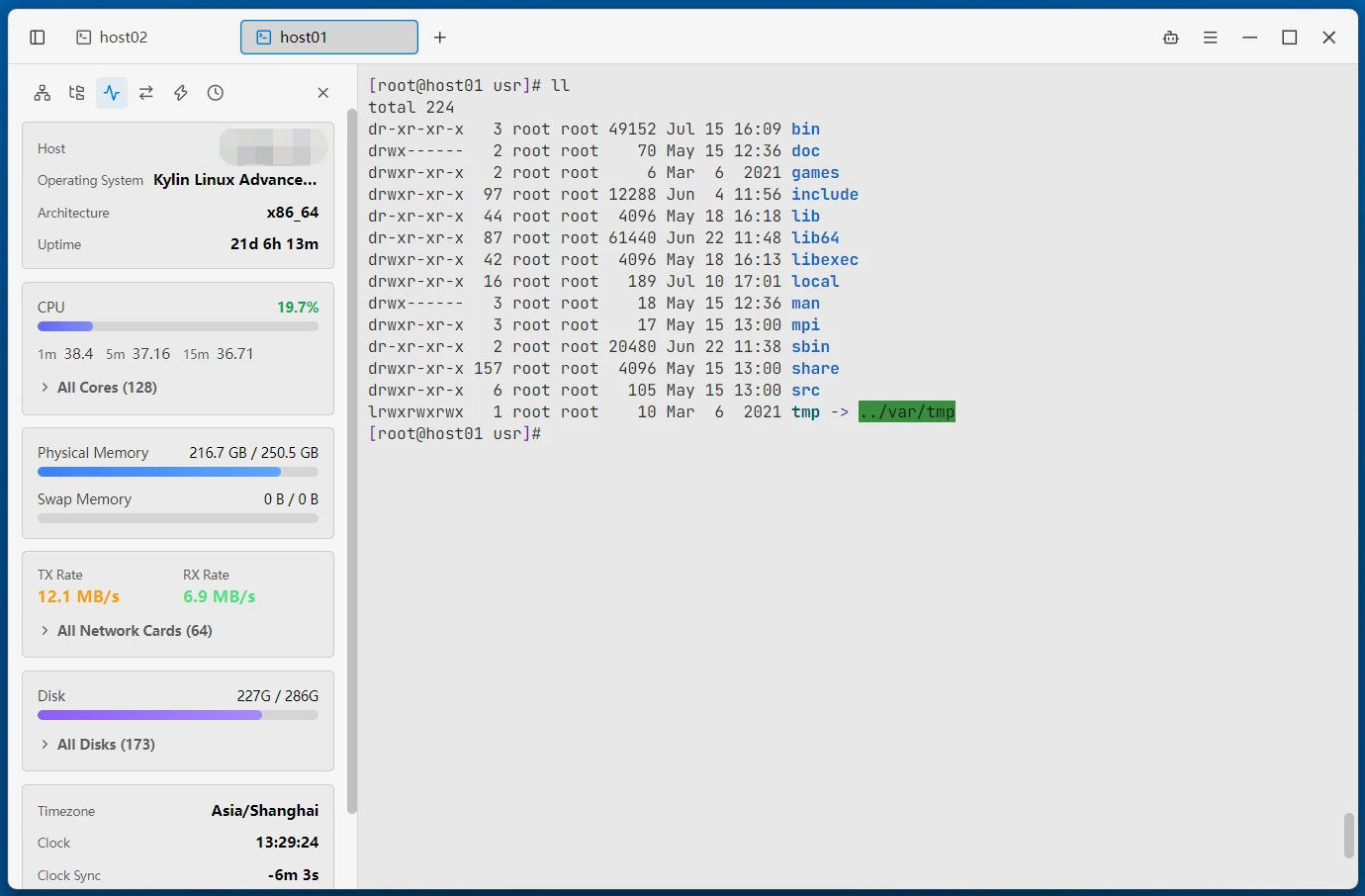
The Monitor Sidebar shows the resource status of the host of the current SSH connection as real-time cards:
- System Info — Host, operating system, architecture, uptime
- CPU — Total usage and 1m / 5m / 15m load; expand to view all cores
- Memory — Physical memory and swap usage
- Network — Receive / send rates; expand to view all network cards
- Disk — Disk usage; expand to view all mount points
- Clock — Host time zone and the offset between the host clock and local time
The Open Full Monitor button at the bottom opens the full monitor tab with more monitoring capabilities.
Related
- SSH Tunnel — Full description of the Tunnels tab
- Server Monitor — The full monitor tab
- Workspace — Tab and panel management
- Remote Terminal — Completion suggestions for terminal input