Databases
uniTerm has a built-in database client that supports mainstream relational databases, Redis, MongoDB, and Elasticsearch.
Relational Databases
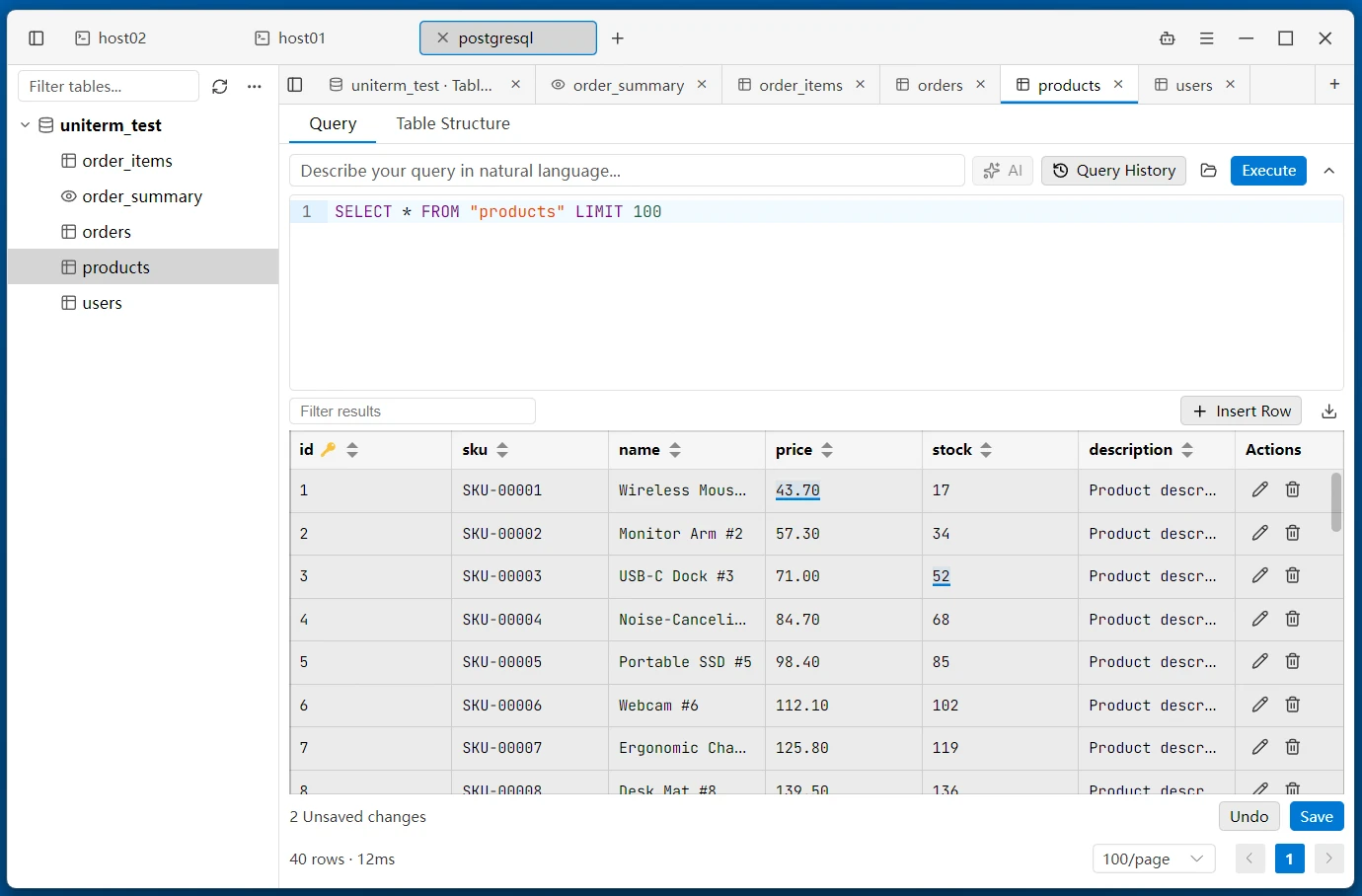
Supported Databases
SQL databases:
| Database | Default Port |
|---|---|
| MySQL | 3306 |
| PostgreSQL | 5432 |
| Oracle | 1521 |
| SQL Server | 1433 |
| rqlite | 4001 |
NoSQL databases:
| Database | Default Port |
|---|---|
| Redis | 6379 |
| MongoDB | 27017 |
| Elasticsearch | 9200 |
Connection Parameters
| Parameter | Description |
|---|---|
| Host | Database server address. SQL Server supports the server\instance named-instance syntax; when no port is given, the instance port is resolved automatically via SQL Browser |
| Port | Default port auto-filled for each database type |
| Username | Database login user |
| Password | Database login password |
| Database Name | Default database to use after connecting (not required for rqlite) |
| SSH Tunnel | When enabled, encrypts the connection to intranet databases via an SSH jump host without exposing the database port |
Database Navigation
The left-side tree panel displays the database hierarchy. After connecting, you can browse the three-level object structure: databases, tables, and views.
- Expand/Collapse -- Click the arrow to the left of a database name to expand the table list. Tables are shown with a grid icon, views with an eye icon for distinction
- Search -- Type keywords in the top search box to filter table and view names in real time. All databases are automatically expanded during search
- Double-click to Open -- Double-click a database name to enter its query page. Double-click a table or view name to enter the data browsing page
The context menu offers actions per node type:
- Database node -- Table and view list, New Query, Run SQL File, New Database, New Table, Drop Database, Refresh
- Table node -- Open Data, Table Structure, Copy Name, Copy Table, Export (structure only / data only / structure + data), Truncate Table, Drop Table
- View node -- Open Data, Copy Name, Export, Drop View
- Blank area -- New Query, New Database, Refresh
Data Query
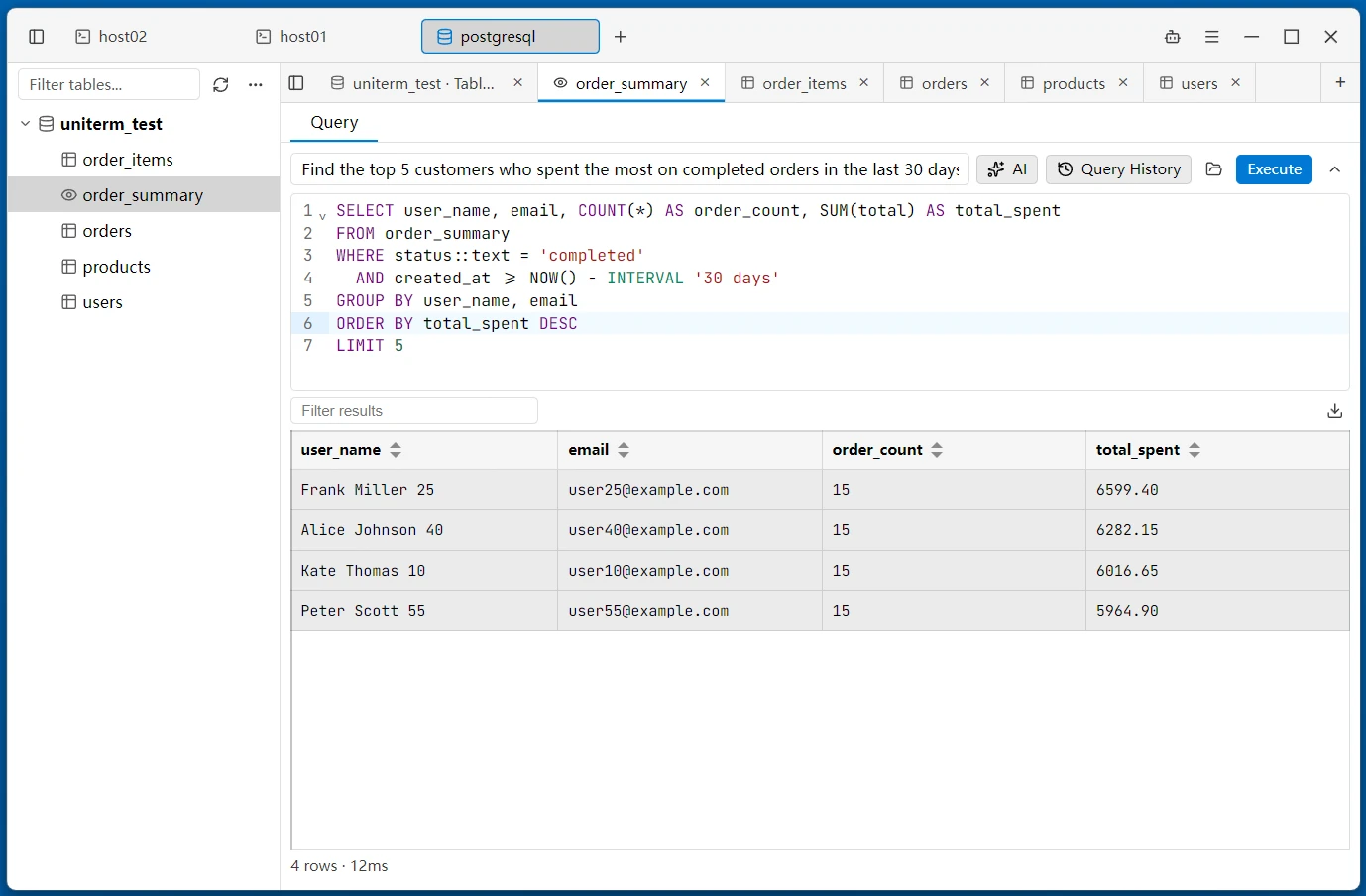
- AI Natural Language -- Describe the query in plain language in the AI input box at the top, and AI fetches table schemas to generate the SQL statement
- SQL Query -- Enter SQL and click Execute or press
Ctrl+Enterto run. Results are displayed in a table, NULL values are shown in italics, and affected row count and elapsed time are displayed. Double-clicking a table name runs a default query for the first 100 rows - Inline Editing -- Double-click a cell to edit it directly (nullable columns can be set to NULL in one click). Changes are staged first, and the save bar at the bottom saves or reverts them in batch (requires the query result to include the primary key column)
- Edit Row / Add Row / Delete Row -- Form-based operations with automatic detection of column types, default values, and auto-increment columns
- Query History -- The "Query History" panel in the toolbar records executed SQL, row counts, and elapsed time. Click an entry to fill it back in and re-run
- Export Results -- Query results can be exported as CSV / TXT / JSON
- Filter & Pagination -- The result toolbar filters in real time; data browsing mode supports pagination (100 / 200 / 500 rows per page)
Run SQL File
Right-click a database name and choose "Run SQL File" to execute .sql scripts in batch: on success, a prompt shows the number of statements executed and the cumulative affected rows; on failure, it reports the failing line number, error details, and the failed statement.
Table and View List
Double-click a database name to enter. Displays all tables and views in that database in table format, with support for search and sorting. Each row supports truncate table and drop table/view. Dangerous operations require entering the name for confirmation.
Table Structure Browser
Double-click a table name to enter. The left tree panel displays column information and index structure, including column name, data type, nullable, default value, primary key, auto-increment, and other details.
- Edit Column -- Modify column type, default value, comment, and collation
- Add Column -- Add a new column with type auto-completion hints
- Delete Column -- Confirm to delete
- Index Management -- Add or delete indexes
Redis
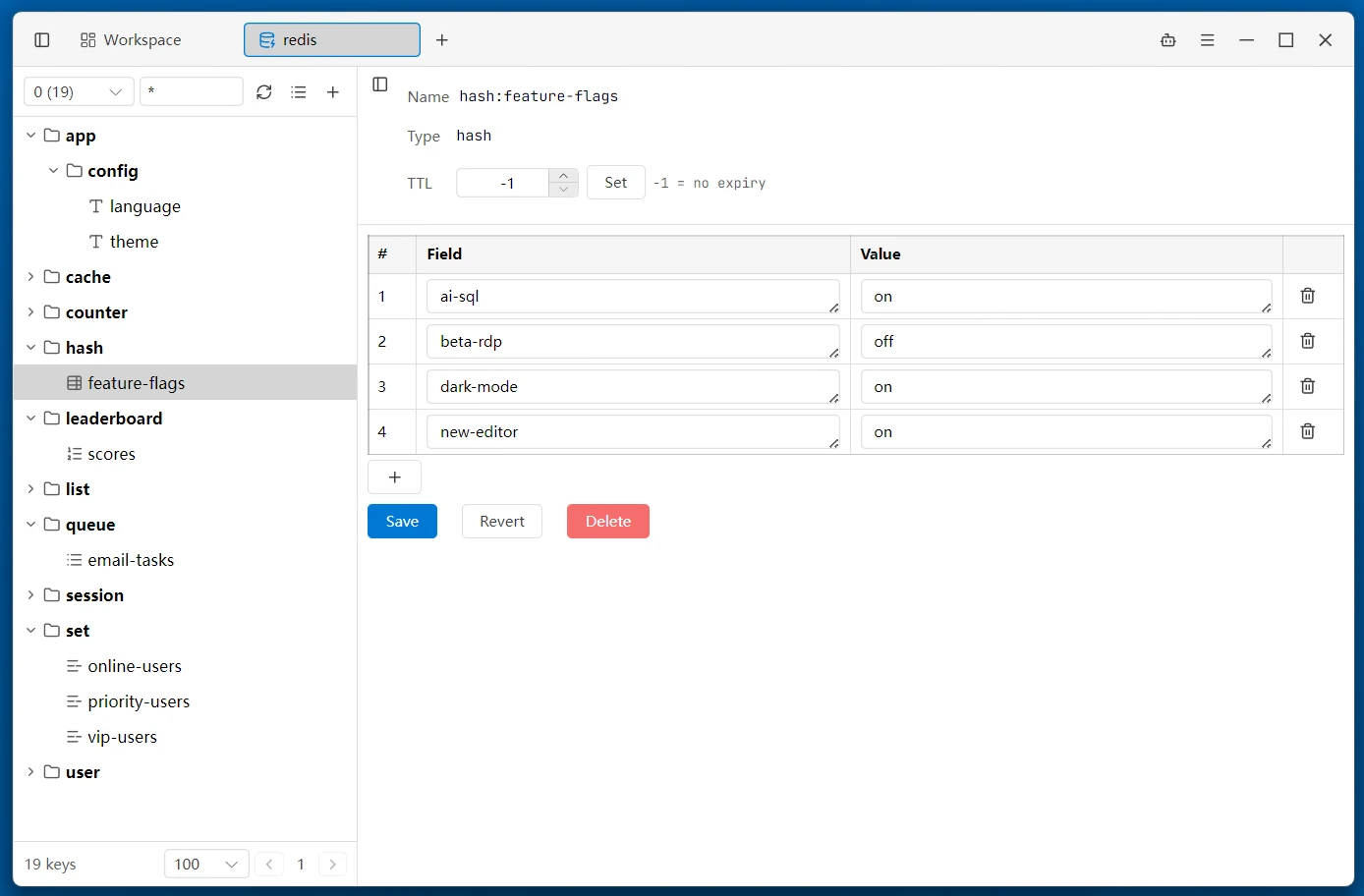
Redis provides key-value data browsing and management.
Connection Parameters
| Parameter | Description |
|---|---|
| Host | Redis server address |
| Port | Default 6379 |
| Username | Redis ACL username (optional, Redis 6+) |
| Password | Redis authentication password (optional) |
| Mode | Standalone / Sentinel. Sentinel mode requires the sentinel node addresses and the master name, with optional sentinel username / password |
| Key Separator | The delimiter used to organize key names into a folder tree, default : |
| SSH Tunnel | When enabled, encrypts the connection to intranet Redis via an SSH jump host |
Key Browsing
The left panel shows all keys, with a toggle between tree view / flat view: in tree mode, key names are split into folder levels by the "Key Separator"; flat mode is a traditional list. Keys can be filtered by name search. After selecting a key, its value content is shown on the right, with different types rendered in their corresponding formats.
The context menu provides the following operations:
- New -- Create a new key
- Edit -- Modify value, rename
- Manage -- Delete key (requires confirmation), set or remove expiration time
- Refresh -- Reload the key list
Key Operations
- New Key -- Select a data type and create a new key by entering the key name and value
- View/Edit Value -- Select a key to view its value content. Click edit to enter modification mode and save
- Rename Key -- Change the key name
- Delete Key -- Select a key and delete it (requires confirmation)
TTL Management
- Set Expiration -- Set an expiration time when creating or editing a key
- Remove Expiration -- Remove the expiration time to make the key persistent
MongoDB
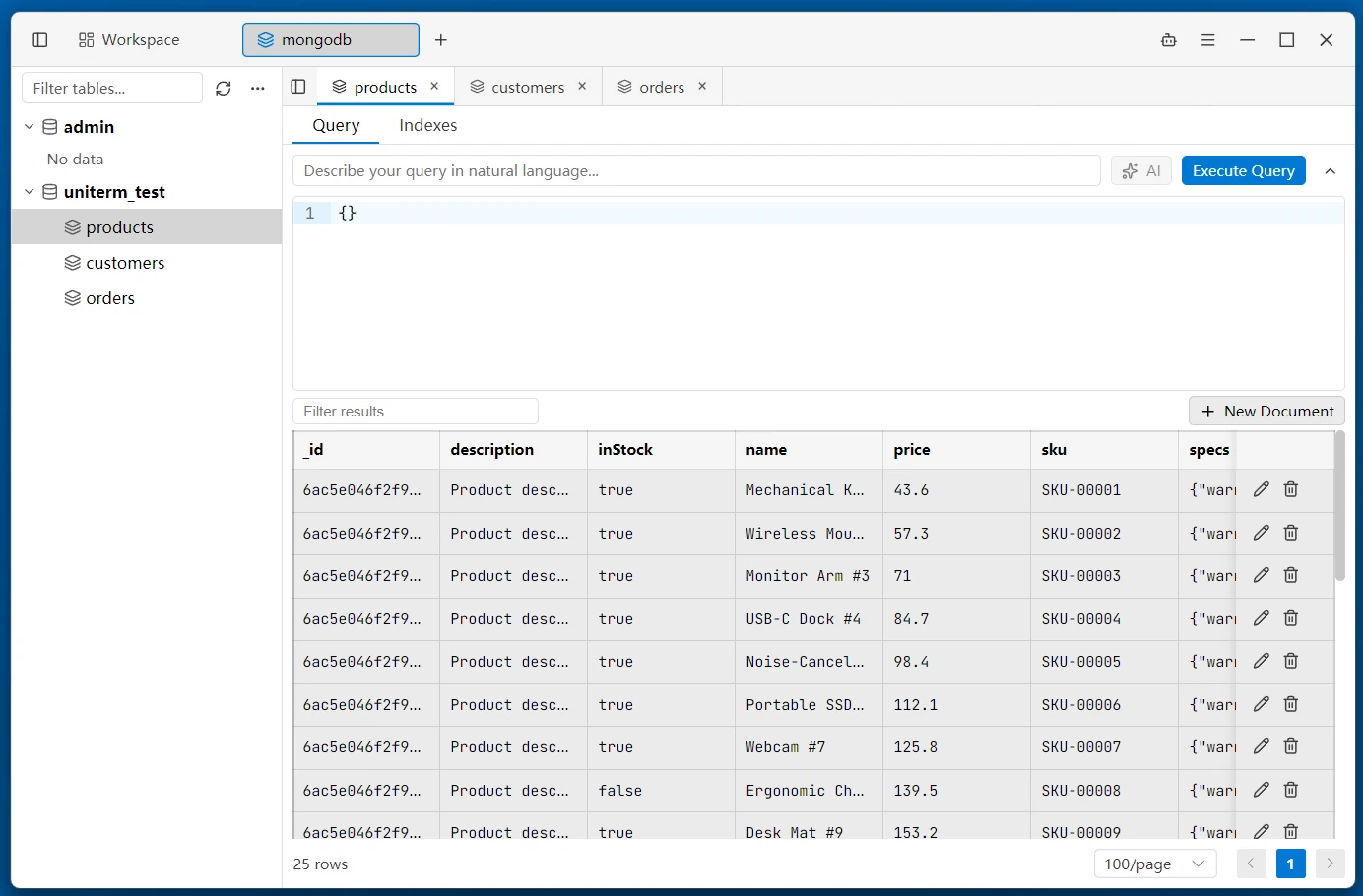
MongoDB provides document database browsing, querying, and inline document editing.
Connection Parameters
| Parameter | Description |
|---|---|
| Host | MongoDB server address |
| Port | Default 27017 |
| Username | MongoDB login user (optional) |
| Password | MongoDB authentication password (optional) |
| SSH Tunnel | When enabled, encrypts the connection to intranet MongoDB via an SSH jump host. Connection auto-detection is available when the SSH host runs mongod |
Database Navigation
The left-side tree panel displays the MongoDB hierarchy: databases, collections, and indexes.
- Expand/Collapse -- Click the arrow to browse databases and collections
- Right-click Menu -- Create/drop databases and collections via the context menu
Query Editor
- Filter Query -- Enter a MongoDB Extended JSON filter and click Execute or press
Ctrl+Enterto run. Results are displayed in a paginated table - Aggregation -- Write aggregation pipelines for advanced data processing
- AI Natural Language -- Describe the query in plain language in the AI input box at the top, and AI generates the MongoDB filter automatically based on the collection schema
Document Editing
- View Document -- Click a document to view its full content
- Edit Document -- Modify document fields inline and save
- Insert Document -- Insert a new document with JSON content
- Delete Document -- Delete a document with confirmation
Index Management
View existing indexes, create new indexes with custom keys and options.
Elasticsearch
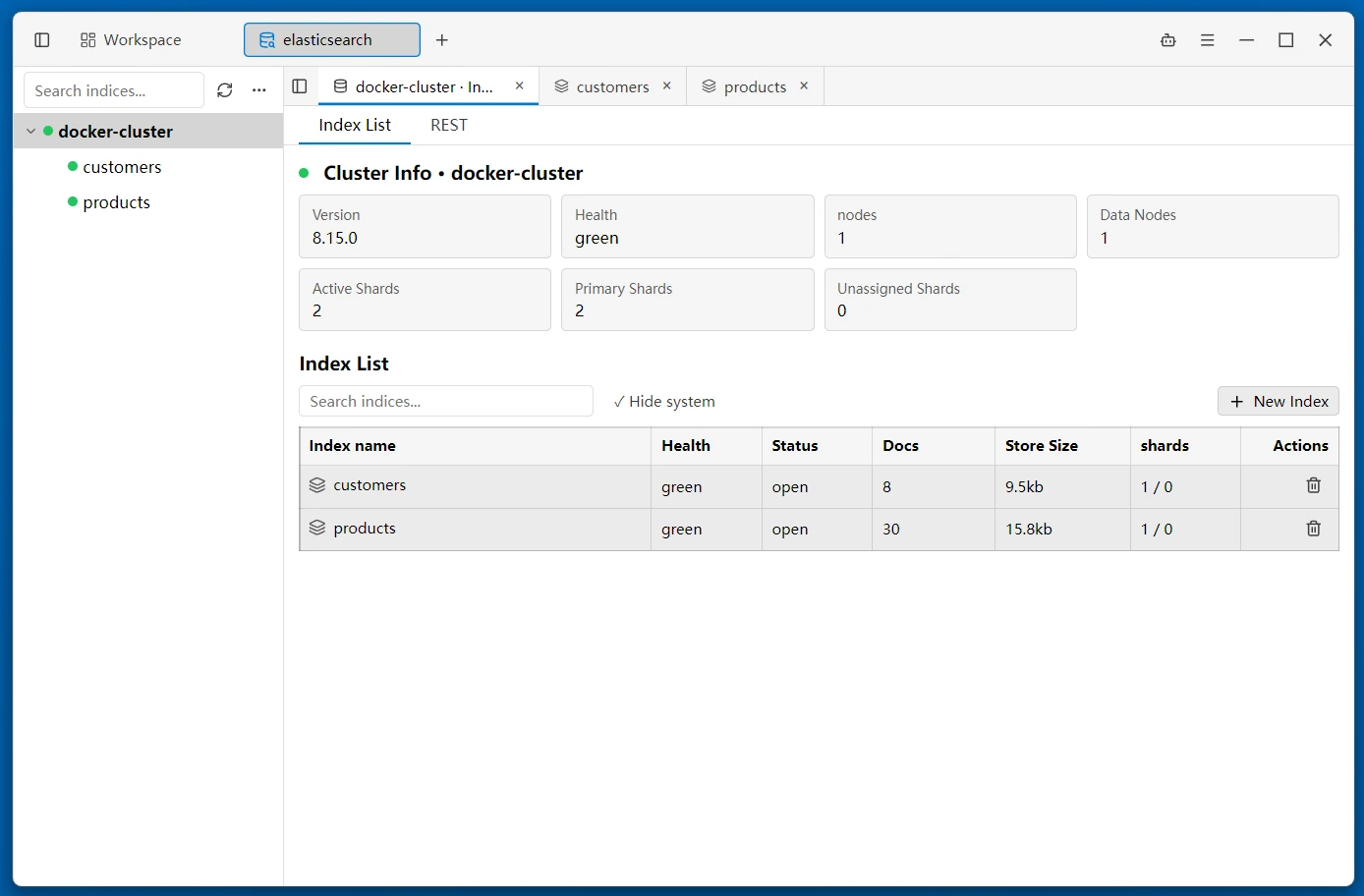
Elasticsearch provides browsing and management of clusters, indexes, and documents.
Cluster Browsing
- Cluster Tab -- View cluster info, node list, data nodes, shard distribution, and health status
- Index List -- Search indexes, hide system indexes, create a new index; open / close / delete indexes
Document Management
- Multi-tab View -- Each index can be opened in its own document tab
- Document CRUD -- Create (leave the ID empty to auto-generate), edit, and delete documents
- Query -- Three ways to query: simple queries (e.g.
status:active), DSL queries, and REST requests - Mapping / Settings -- View the index structure and configuration
Related
- Remote Terminal -- SSH tunnel configuration