Tabs and Workspace
uniTerm manages multiple connections through tabs and displays multiple terminals side by side through workspaces.
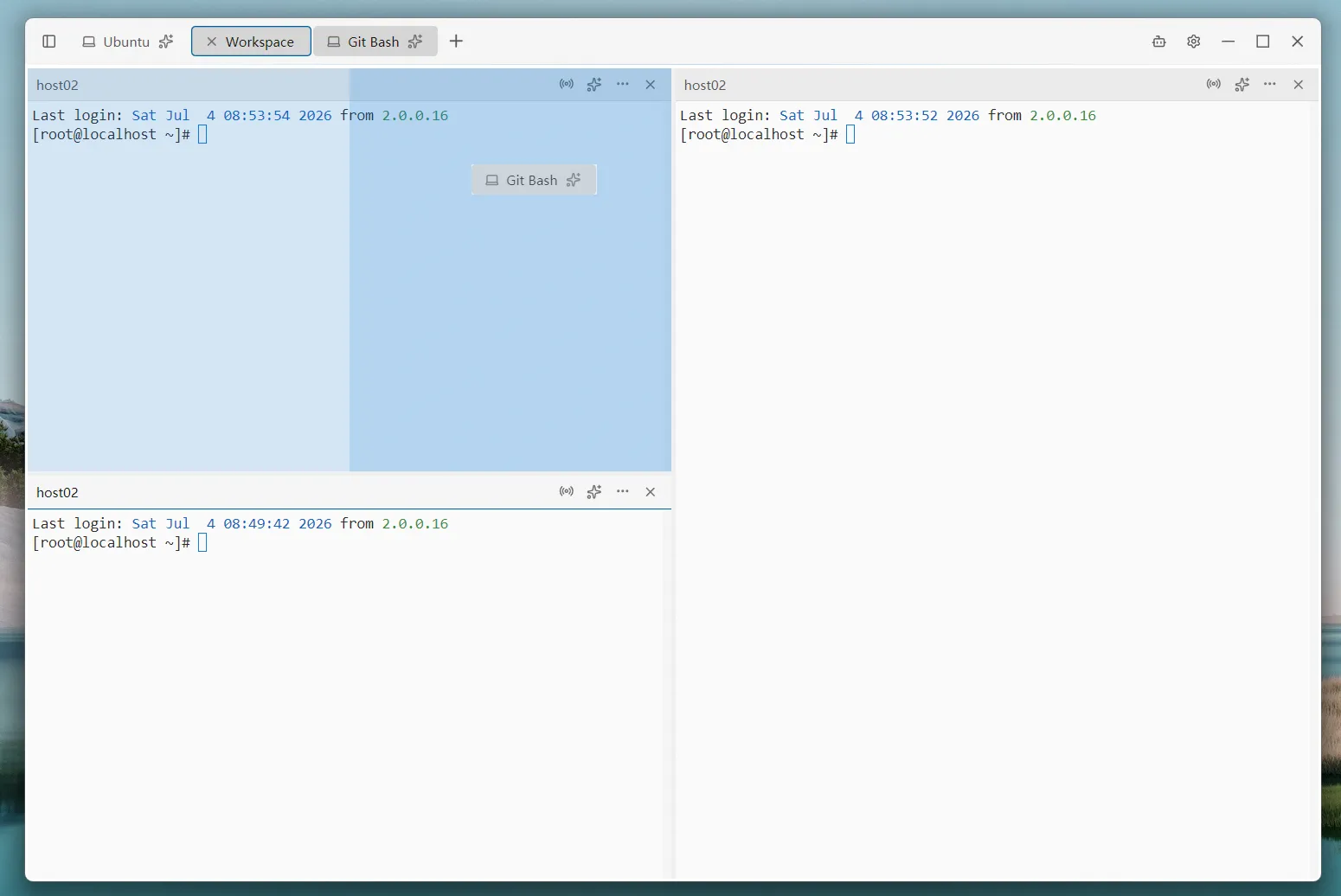
Tabs
Tab Operations
- New Tab — Double-click a connection in the left connection list, or right-click a connection and select a connection method
- Switch Tabs — Click the tabs at the top to switch
- Close Tab — Click the × button on the right side of a tab, or right-click to close
Tab Dragging
- Reorder — Drag tabs to rearrange their order
- Drag into Split — Drag a terminal-type tab into the content area to create a split (other tab types do not support merging into the workspace)
- Drag out of Split — Drag a tab from a split back to the tab bar to cancel the split
Tab Right-Click Menu
Right-click a tab to open a context menu. Different tab types show different items:
Common Menu (all tabs):
- Rename — Change the tab display name
- Close — Close the tab
Terminal Menu (SSH / Local):
- Duplicate Session — Copy the current connection and open a new tab
- Text Search — Search for keywords in terminal output
- Export Text — Export terminal output as a text file
SSH-Specific Menu:
- Open SFTP — Open the SFTP file browser on the current connection
- Upload File — Send the
rz -becommand to the terminal - Open Server Monitor — Open the monitoring panel on the current connection
Workspace
Creating a Workspace
- Drag Tabs — Drag a tab into the content area. Drag to the top/bottom edge to create a horizontal split; drag to the left/right edge to create a vertical split
- Resize — Drag the divider between splits to adjust panel proportions
- Close Split — Drag the tab back to the tab bar to cancel the split
Panel Menu
Each terminal panel provides action buttons on the right side of the title bar:
Broadcast — When enabled, input in the current panel is synchronized to all terminals in the workspace
AI Lock — Pin the AI Assistant to this panel. When locked, the panel title bar is highlighted
More — Dropdown menu (similar to the tab right-click menu):
Terminal menu:
- Duplicate Session
- Text Search
- Export Text
SSH-specific menu:
- Open SFTP
- Upload File
- Open Server Monitor
Close — Close the current panel
Broadcast Input
When broadcast input is enabled, content typed in any terminal in the current workspace is simultaneously sent to all terminals in that workspace. This is useful for executing the same command on multiple servers at once.
Related
- Remote Terminal — SSH tab right-click menu
- Personalization — Adjust interface themes