AI Assistant
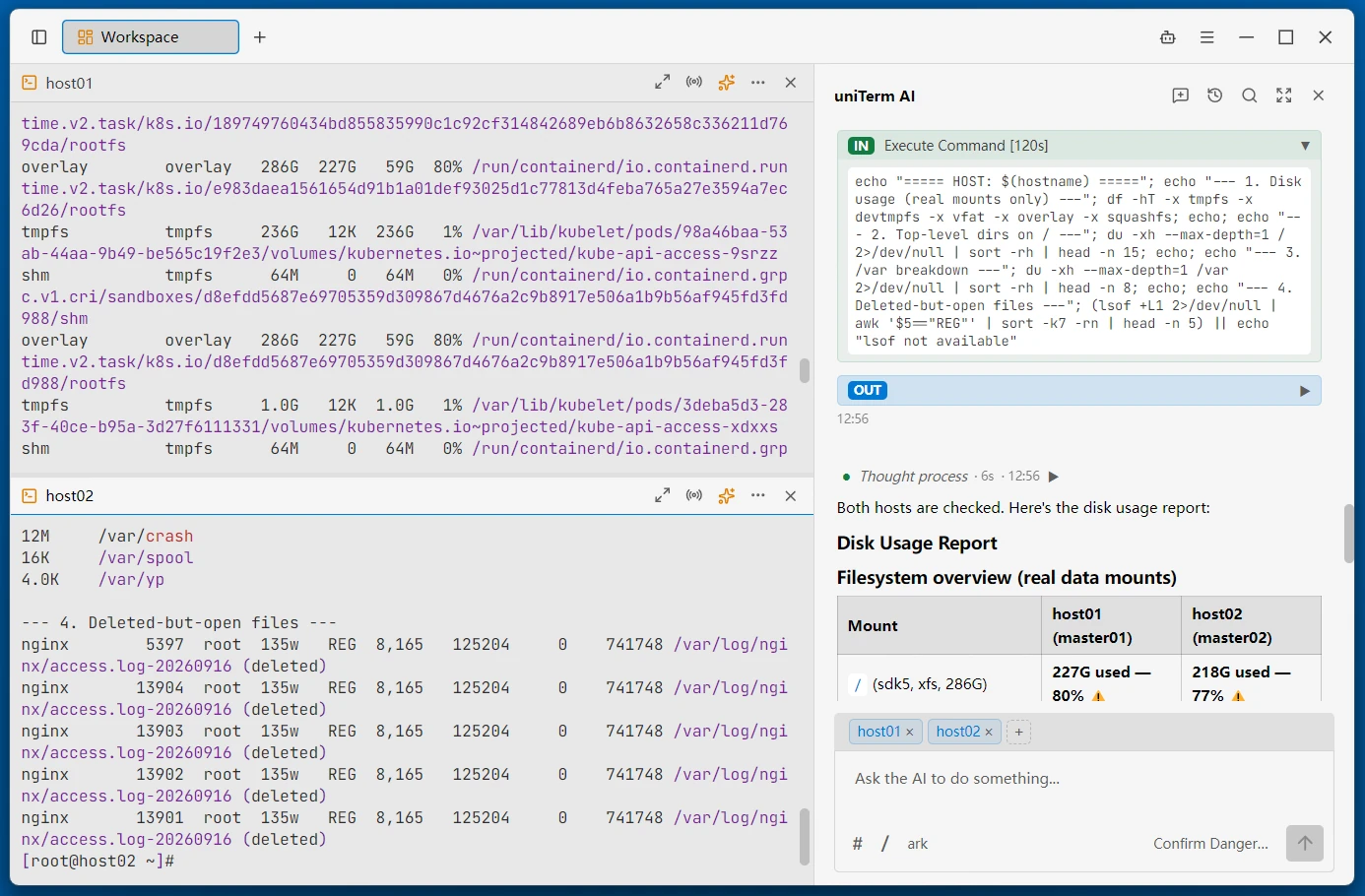
uniTerm has a built-in autonomous AI Agent that can independently plan and execute multiple rounds of Shell commands in the terminal.
Core Capabilities
Autonomous Multi-Round Execution
The AI Agent will:
- Understand Intent — Analyze the natural language requirements you input
- Make a Plan — Break it down into executable Shell command steps
- Execute and Observe — Run commands in the terminal and observe the output
- Iterate and Adjust — Revise the plan based on results and continue until the task is completed
LLM Provider Configuration
Supports Anthropic and OpenAI-compatible APIs. You can add multiple models and switch between them at any time.
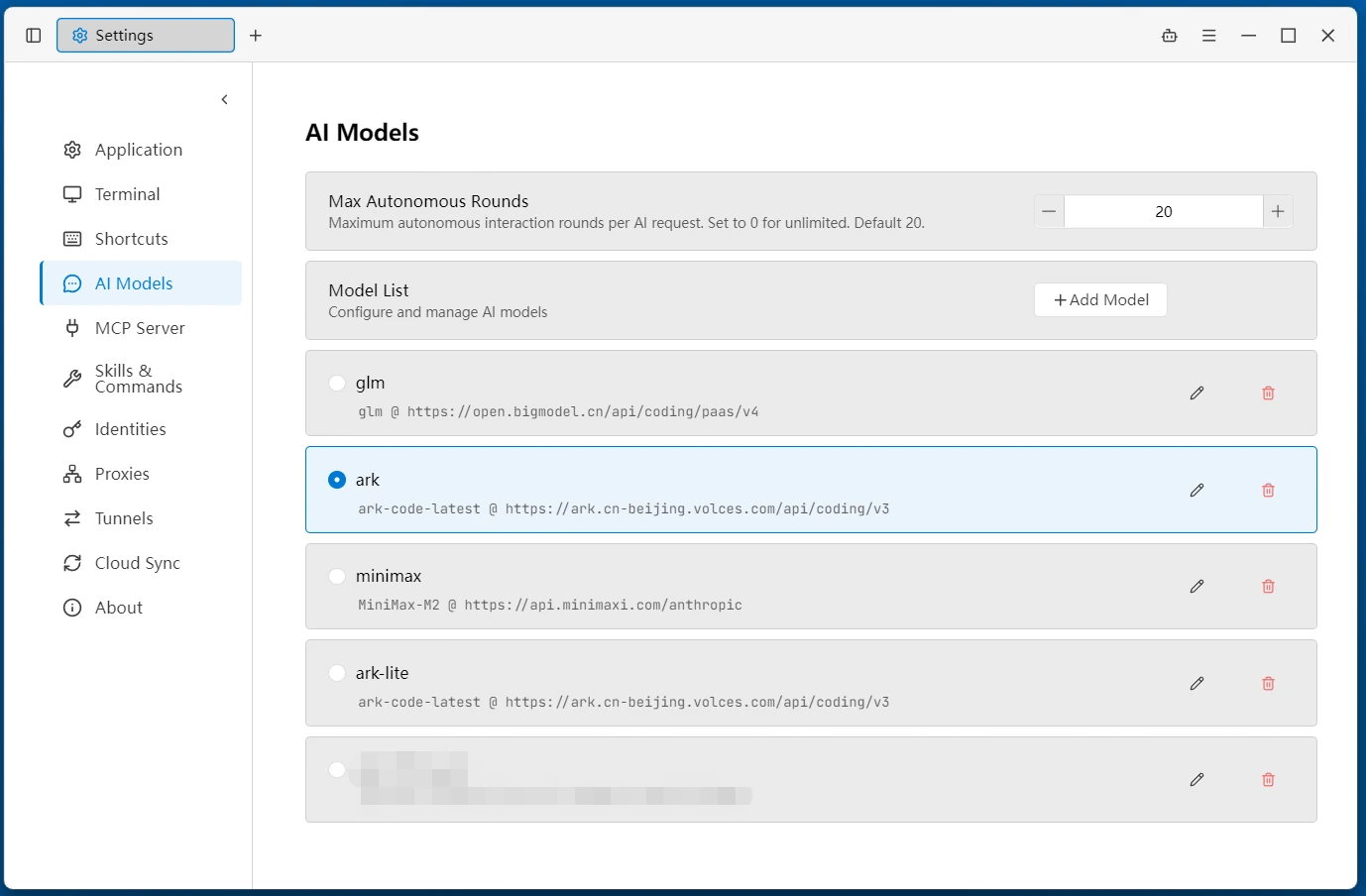
Model Configuration Fields:
| Field | Description |
|---|---|
| Name | Custom display name used to distinguish configurations in the model list |
| Protocol | Choose Anthropic or OpenAI protocol, determining the request format |
| Base URL | API endpoint address. OpenAI defaults to https://api.openai.com/v1, Anthropic defaults to https://api.anthropic.com |
| User-Agent | Optional. Custom User-Agent header identifier. Presets include uniTerm, Claude Code, Cursor, and manual input is also supported |
| API Key | API authentication key, stored as a password |
| Model | Model name (e.g. gpt-4o, claude-sonnet-4-20250514). Use the "Fetch Models" button to pull available models from the API; the dropdown shows display names while the real model ID is saved |
| Test Connection | After filling in the API Key and model, click "Test Connection" to verify the configuration |
| Proxy | Optional. Route model requests through a specific or system proxy — see Proxy |
Multi-Model Management:
- Supports adding multiple model configurations, each with independent protocol, address, and key settings
- Switch the active model from the dropdown menu at the top of the AI sidebar
- Edit or delete existing model configurations in Settings
- The model catalog and the AI autonomous round limit sync across devices via cloud sync
Execution Mode
| Mode | Description |
|---|---|
| Confirm All | Every command requires manual confirmation |
| Confirm Write | Dangerous commands and file write operations require confirmation |
| Confirm Dangerous | Only high-risk commands such as rm and sudo require confirmation (default) |
| Bypass All | All commands execute directly without confirmation |
Max Autonomous Rounds
In Settings you can configure "Max Autonomous Rounds", which limits the maximum number of dialogue rounds in which the AI autonomously executes commands and responds. Set it to 0 for unlimited; the default is 20.
Terminal Integration
The AI Assistant is deeply integrated with the terminal — commands run directly in terminal tabs without manual copy-paste.
Execution Flow:
- Enter a natural language request in the AI dialog (e.g. "Check disk usage for me")
- The AI analyzes the request and generates an execution plan
- Depending on the current execution mode, you may need to confirm each command
- Commands are executed one by one in the target terminal with real-time output
- The AI observes the output and automatically adjusts subsequent steps
Selecting the Target Terminal:
- Follow Active Tab (default) — AI commands execute in the currently active terminal tab. When you switch tabs, subsequent commands automatically switch to the new tab
- Associated Terminals — Click
[+]at the top of the AI panel to add one or more associated terminals. All AI commands then execute in the associated terminals, unaffected by tab switching
AI Lock:
After locking the AI to a panel, that tab and the panel title bar show a warning-colored background. AI commands only execute in that panel, so the target is clear at a glance.
Split-Screen Collaboration:
Drag the AI conversation panel to the right area to form a left-right split with the terminal. View the AI's analysis and plan on one side while observing execution results in the terminal on the other — neither side obstructs the other.
Session Management
- Rename a session — Sessions in the "Recent Sessions" dropdown can be renamed
- Export as Markdown — Right-click a message bubble to export the entire conversation as a Markdown file
- Delete messages — Right-click a message bubble to delete just that message, or to delete it and everything after it (context rollback)
Skills and Commands
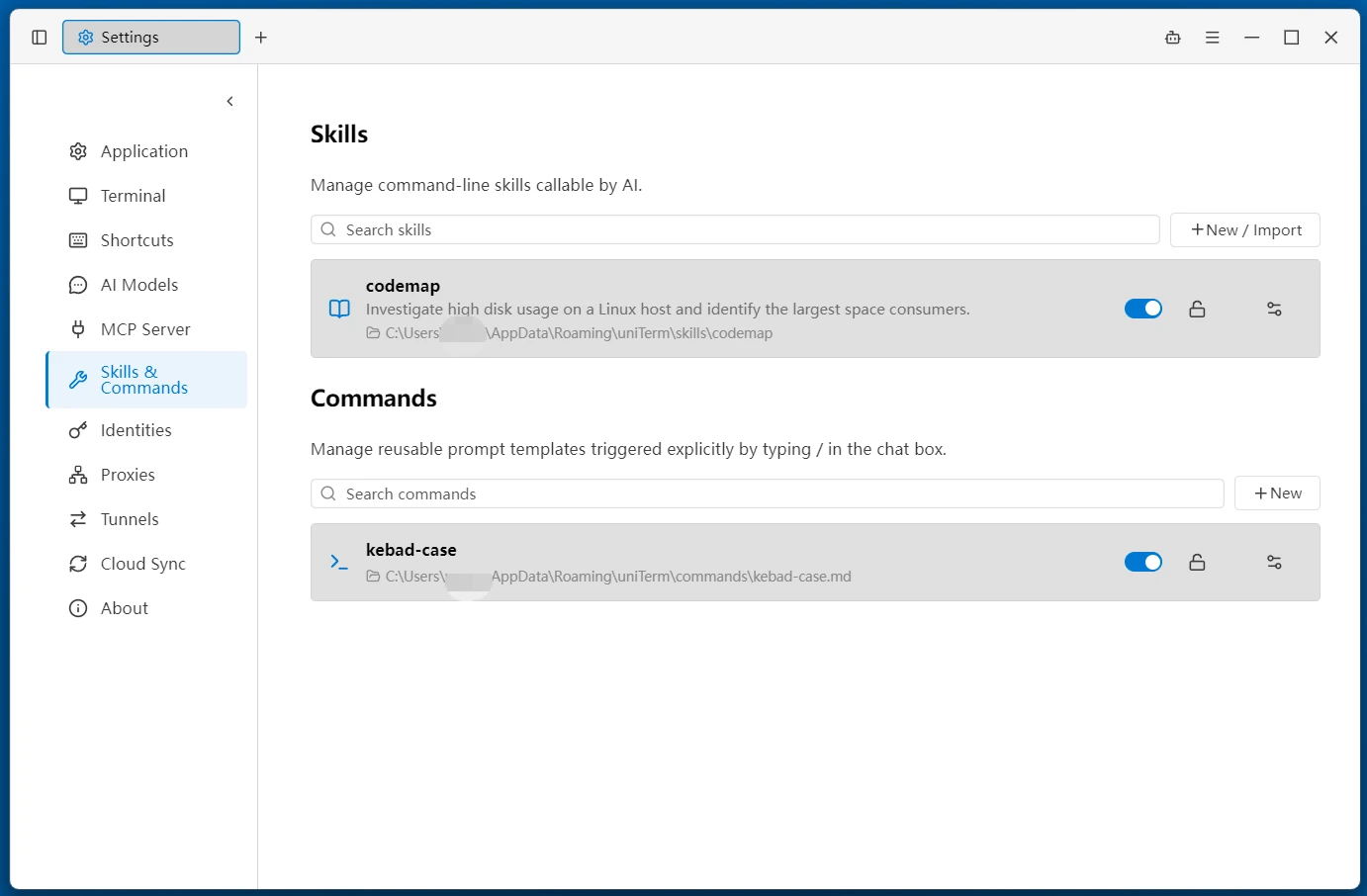
Skills and commands let you capture reusable workflows and prompts. Type / in the AI input box to pick one from the dropdown and insert it — both appear as /name.
Skills
A skill is a reusable command-line workflow / SOP that the AI can invoke on its own when needed.
- Autonomous Invocation — When the AI decides the current task matches a skill, it reads and follows its steps automatically, with no manual trigger
- Manual Insertion — Type
/namein the input box to insert a skill manually - Save Skill — After working out a repeatable procedure, the AI can save it as a new skill via
save_skill
Management (Settings → Skills & Commands):
- Create — Fill in the name (kebab-case), description, and instruction body
- Import — Drop in a
.md/.zip/.skillfile, or select a folder to import (including directory-style skills that reference scripts) - Enable / Lock — Toggle whether it takes effect; locking makes it read-only to prevent accidental edits or deletion
- Edit / Delete — Modify the description and body anytime, or delete skills you created
Security Note
Skills drive the AI to execute terminal commands — confirm carefully in combination with the execution mode.
Commands
A command is a reusable prompt template with argument placeholders, invoked quickly via / in the conversation.
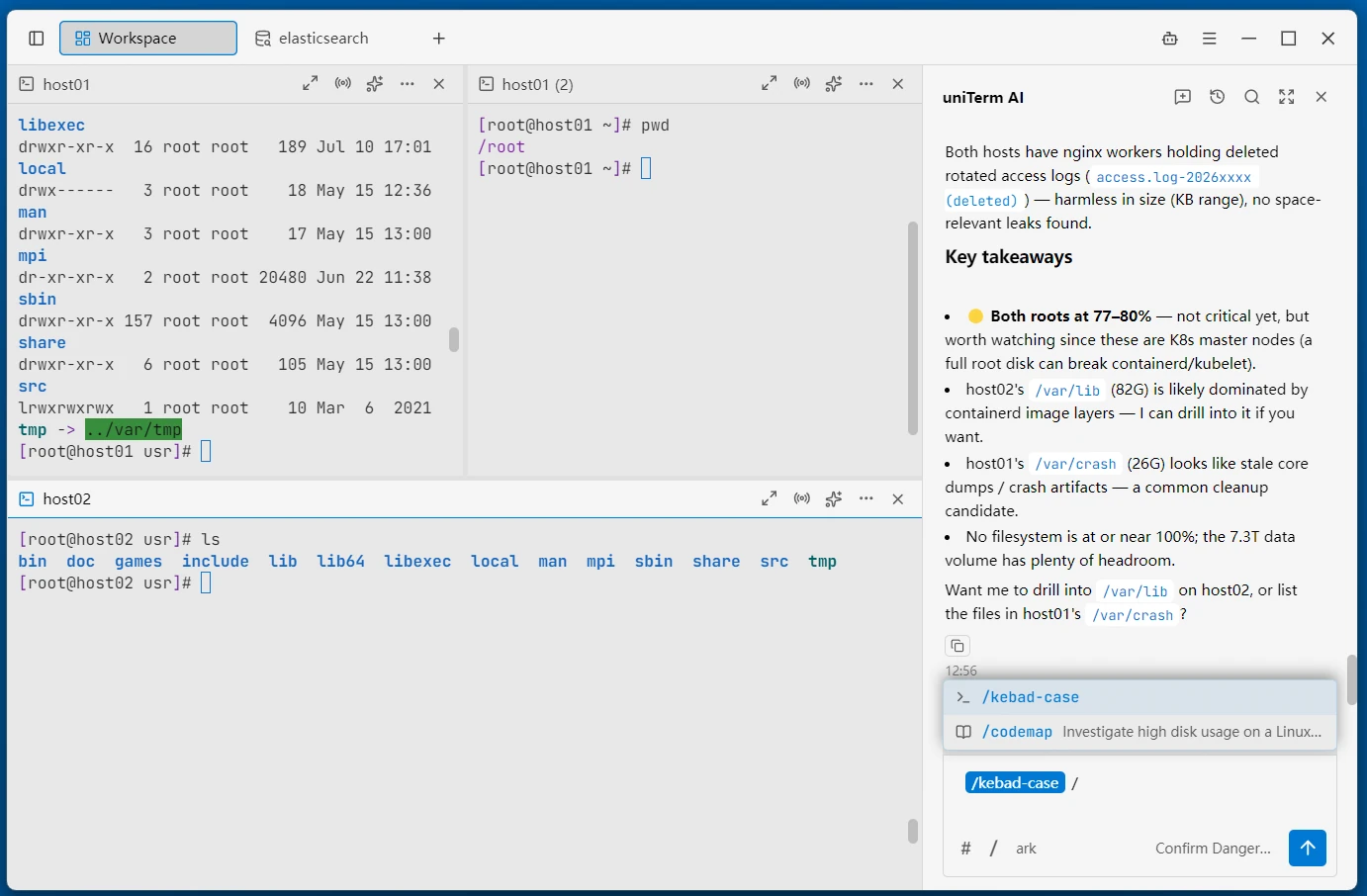
- Argument Placeholders — Use the
$ARGUMENTSplaceholder in the body to receive arguments typed after/command; without a placeholder, arguments are automatically appended to the end - Argument Hint — Set an argument hint (e.g.
[env] [service]) to show usage in the dropdown - Management — Same as skills: create, edit, delete, enable, and lock
Related
- Remote Terminal — Intelligent completion for terminal input